
If you have ever stood in the kitchen trying to remember which password goes with which account, you are not alone. Family passwords are one of the quietest sources of daily friction in a busy home. You need one for the school portal, one for the streaming service, one for the tablet, one for the Wi-Fi, one for the bank, and one for the account that holds all the family photos. Multiply that by two parents and two children, and the system collapses. This family password manager guide is for parents who want to organize family passwords without turning security into a second job.
I am Daniel Mercer, and I write about family technology from my kitchen table in Raleigh. I spent more than a decade in IT support, and I have helped many families untangle their account chaos. The pattern is always similar. Passwords are reused, written on sticky notes, or known by only one parent. Then something goes wrong, and a simple login turns into a stressful afternoon. The goal of this guide is not perfect security. The goal is a workable system that both parents can manage and that does not make everyday life harder.
Why Family Passwords Get Out of Control
The Drawer Full of Sticky Notes
Most families start with good intentions. They write passwords on a piece of paper and put it in a drawer. Then they create new accounts and add more papers. Soon the drawer is full of outdated notes, and nobody knows which password is current. I have seen this in my own home. Morgan and I once had three different Wi-Fi passwords written on three different notes. None of them matched the router.
The One-Parent Password Problem
The other common problem is that one parent becomes the keeper of all passwords. That works until that parent is traveling, sick, or simply unavailable. If only one person knows the password to the school portal or the family Apple account, the whole family is one step away from a lockout. This is a family account security issue, not a trust issue. A password system should work for both parents, not just one.

What a Family Password Manager Actually Does
One Vault, Different Access
A password manager is an app that stores your passwords in an encrypted vault. You remember one master password, and the app remembers the rest. For families, the key feature is sharing. You can create a shared folder for accounts both parents need, like utilities, insurance, and school portals. You can also keep personal accounts private. This means Morgan and I can both access the family Netflix account without sharing our personal email passwords.
Sharing Without Giving Away Everything
A good family password manager lets you share specific passwords without revealing your entire vault. This is different from writing passwords on a note. You decide what is shared and what stays private. For example, we share the Wi-Fi password, the streaming accounts, and the school portal. We do not share each other's personal email or social media accounts. That balance makes the system practical.
How to Choose a Family Password Manager
Features That Matter for Parents
Not every password manager is built for families. Look for shared folders, two-factor authentication, and a clear recovery process. A family plan is usually worth the cost because it allows multiple users under one subscription. The app should work on both Android and iOS, because families often use a mix of devices. It should also offer a browser extension and a mobile app that is easy to use.
Features You Can Ignore
You do not need advanced features like encrypted file storage or dark web monitoring to start. Those can be useful, but they are not essential. Focus on the basics: secure storage, easy sharing, and a recovery method that both parents understand. A simple tool that your family actually uses is better than a powerful tool that sits unused.
Setting Up Your Family Password Manager Step by Step
Step 1: Pick a Master Password
The master password is the key to everything. Choose something long and memorable, but not something someone could guess from your social media. A passphrase of four or five random words works well. Write it down and store it somewhere safe, like a locked drawer or a safe. Do not store it only in your phone. If the phone is lost, you need another way to remember it.
Step 2: Add the Most Important Accounts First
Do not try to add every account in one day. Start with the accounts that matter most: primary email, banking, the family Apple or Google account, and the school portal. Add two-factor authentication to these accounts where possible. This first step protects the accounts that would cause the most trouble if compromised.
Step 3: Set Up Sharing for Both Parents
Create a shared folder for family accounts. Invite your partner to the folder. Make sure both parents can open the vault, find the shared passwords, and add new ones. This is the Two-Parent Test in action. If only one parent can manage the vault, the system is not finished.
Step 4: Create a Recovery Plan
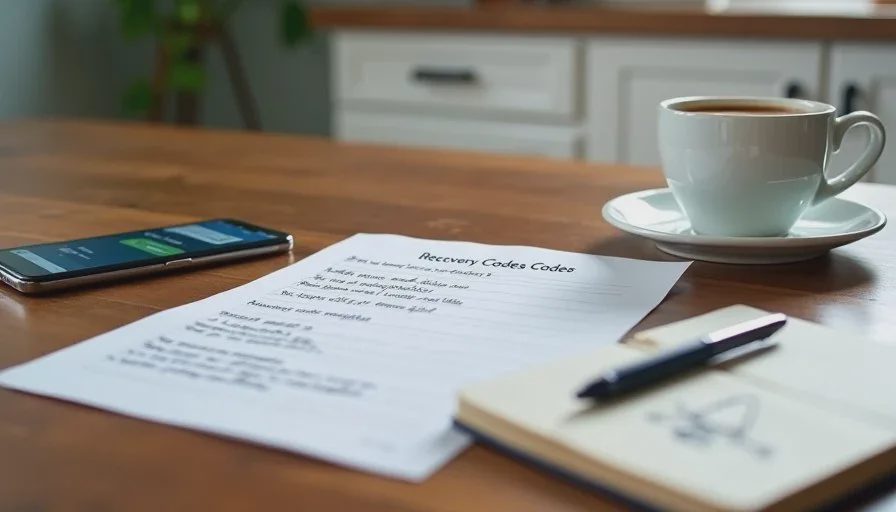
Most password managers offer a recovery kit or emergency access feature. Use it. Print the recovery codes and store them with your master password. If something happens to one parent, the other should be able to access the family accounts. This step is easy to skip, and it is the step that prevents the worst lockouts.
What About the Kids' Passwords?
Younger Children
For younger children, you usually manage their accounts. Their school login, their tablet account, and their app passwords can live in your family vault. They do not need their own password manager yet. What they need is a simple rule: ask a parent before creating a new account. That rule keeps the system manageable.
Teenagers
Teenagers are a different story. They need some privacy, but they also need guidance. A reasonable approach is to help them set up their own password manager account and teach them how to use it. You can agree that emergency access stays with a parent. This gives them independence while keeping a safety net. The goal is to build a habit they will carry into adulthood.
Common Mistakes to Avoid
Using the Same Password Everywhere
Reusing passwords is the most common mistake I see. If one account is breached, every account with the same password is at risk. A password manager makes it easy to use unique passwords for every account. You do not have to remember them. The app does.
Forgetting the Master Password
The master password is the one password you must remember. If you forget it and you have not saved the recovery codes, you can lose access to the vault. Write it down. Store it safely. Do not rely on memory alone.
Sharing Passwords Over Text
Text messages are not a secure way to share passwords. They can be read if a phone is unlocked or compromised. Use the sharing feature in your password manager instead. It is safer and easier to manage.
A Simple Family Password Routine
Weekly Check-In
Once a week, take five minutes to check the vault. Add any new accounts. Update any changed passwords. Make sure both parents can still access the shared folder. This small habit prevents the vault from becoming outdated.
Quarterly Review
Every few months, review your important accounts. Check that two-factor authentication is still on. Update recovery phone numbers and emails. Remove accounts you no longer use. This review keeps the system clean and reduces risk.
The Goal Is Less Stress, Not Perfect Security
A family password manager will not make your home perfectly secure. Nothing will. But it will reduce the daily friction of forgotten passwords and the stress of a potential lockout. It will give both parents access to the accounts that matter. And it will teach your children a habit that will serve them well.
Start small. Pick a password manager. Create a shared folder. Add your most important accounts. Save your recovery codes. Then build from there. You do not need to fix everything in one weekend. You need a system that works for your family, one that is simple enough to maintain and strong enough to protect what matters.
Let technology help you live your life—don't let your life revolve around technology.