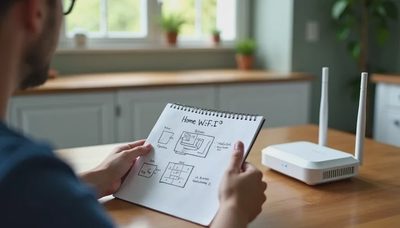
A weak Wi-Fi signal has a way of appearing at the worst possible time: during a video call, a homework upload, or the one television episode everyone agreed to watch. Learning how to set up wifi extender equipment can solve a dead zone without replacing a perfectly serviceable router. The process is usually manageable in 15 to 30 minutes, provided you put the extender in the right place and use the correct network settings.
An extender, sometimes called a repeater, receives your router’s wireless signal and rebroadcasts it farther into the house. It does not create faster internet service. Instead, it can improve coverage in a bedroom, garage, upstairs hallway, or home office that sits beyond the router’s comfortable range.
Before you set up the extender
Start by checking whether the problem is really Wi-Fi coverage. Stand near the router and run a speed test on the same phone or laptop that struggles in the distant room. Then repeat the test in the problem area. If speeds are strong beside the router but poor in the far room, an extender could help. If speeds are poor everywhere, contact your internet provider or inspect the router before buying another device.
Read the extender’s box and manual for compatibility details. Most current models work with ordinary 2.4 GHz and 5 GHz networks, and brands such as TP-Link, Netgear, and Linksys commonly offer a browser setup page or mobile app. You do not need the same brand as your router, although matching brands can make the setup screen less confusing.
Write down your existing Wi-Fi name and password. If your router uses separate names for 2.4 GHz and 5 GHz, note both. The 2.4 GHz band usually travels farther and passes through walls better, while 5 GHz can provide higher speeds at shorter distances. Keep the extender’s administrator password separate from the Wi-Fi password, and do not reuse an important email or banking password.
how to set up wifi extender with WPS
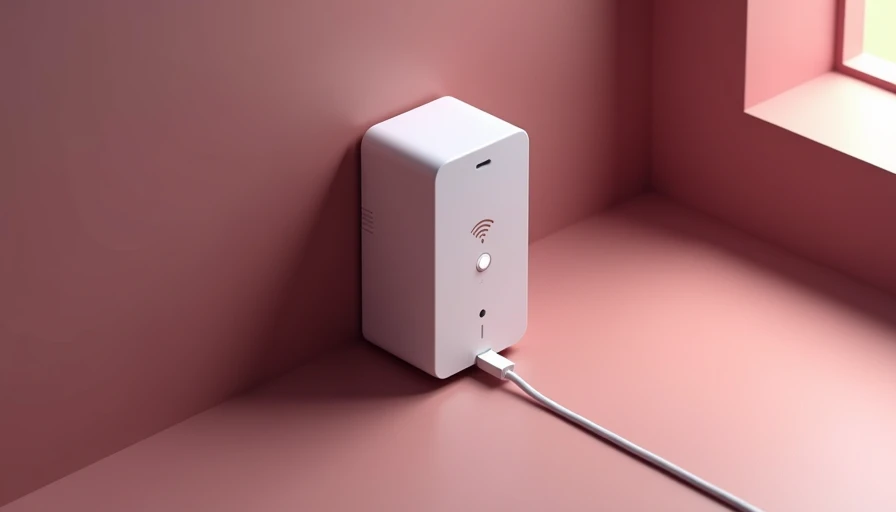
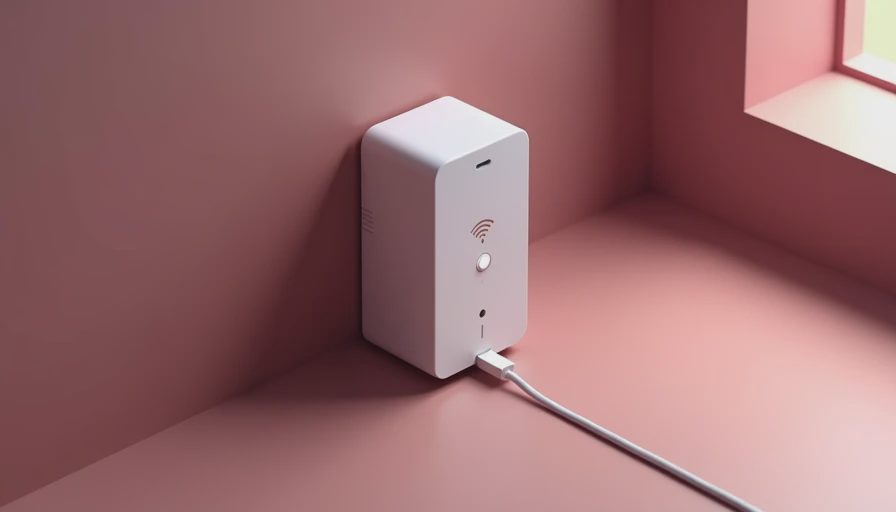
The quickest method is WPS, or Wi-Fi Protected Setup, if both devices support it. Plug the extender into an outlet a few feet from the router, wait for its lights to settle, and press the WPS button on the router. Within a minute or two, press the WPS button on the extender. A light should indicate that the devices have connected.
After the pairing finishes, unplug the extender and move it partway between the router and the weak area. Do not put it inside the dead zone itself. It needs a usable signal to repeat. A hallway outlet, open shelf, or landing often works better than a cabinet, behind a television, or beside a microwave oven.
Use your phone to look for a new network name. Many extenders append “_EXT” to the original name, although some allow you to copy the router’s name and password. A separate name makes it easier to see which device you are using during testing. Connect to the extender’s network and open a few websites in the previously unreliable room.
WPS is convenient, but it is not magic. If the light turns red, amber, or refuses to settle, move the extender closer to the router and try again. Some internet provider routers disable WPS, and some mesh systems are designed to use their own branded satellites instead. In those cases, use the app or browser method described next.
How to set up wifi extender with an app or browser
For app-based setup, download the manufacturer’s official application from the Apple App Store or Google Play. Avoid random setup apps advertised in search results. Plug in the extender near the router, open the app, create or sign into the device account if required, and select the option to add an extender.
The app will scan for nearby networks. Choose your home network, enter its Wi-Fi password carefully, and follow the prompts to name the extended network. Some devices ask whether you want one shared network name or separate names. Shared naming can make roaming more convenient, but separate names are simpler while troubleshooting because you can tell exactly where your phone is connected.
A browser setup is similar. Connect your phone or computer to the temporary network printed on the extender’s label, then visit the web address listed in the manual. Common addresses include a manufacturer-specific local page rather than a normal public website. Select your router’s network, enter the password, apply the settings, and wait for the extender to restart.
Once the setup is complete, relocate the unit. The best position is usually where the router’s signal is still moderate, not where the signal has already disappeared. Keep it above floor level with open space around it. Thick masonry, metal shelving, large appliances, and multiple interior walls can reduce performance even when the status light looks acceptable.

Test the connection before declaring victory
Walk through the rooms where your family actually uses Wi-Fi. Check a video call, stream a short high-definition clip, load a school portal, and transfer a file if those tasks matter in your home. A speed test is useful, but everyday reliability is the better measure. A connection that is slightly slower yet stable can be more useful than a brief peak speed followed by repeated dropouts.
Test both the extender’s network and the original router network. Your phone may cling to the weaker signal instead of switching automatically. Turn Wi-Fi off and on, or manually select the stronger network. If your extender offers a signal-strength indicator, aim for a middle or good reading. Moving the unit one room closer to the router can sometimes improve distant-room performance more than buying a larger model.
Remember that an extender shares wireless capacity with connected devices. If four family members are streaming, gaming, and uploading large files through the same repeater, everyone may notice reduced speed. For a home office, desktop computer, or smart television that never moves, an Ethernet cable from the extender can provide a steadier connection when the model includes an Ethernet port.
Privacy and security settings worth checking
Change the extender’s administrator login if the setup process gives you that option. Install firmware updates from the manufacturer’s official app or support page, especially during the initial setup. Use WPA2 or WPA3 security when available, and avoid leaving the extended network open without a password.
If the device offers remote management, decide whether you need it. Remote access can be convenient, but a simple household network often does not require another account or cloud dashboard. Turn off features you will not use, such as guest networking or usage analytics, unless they solve a real problem. This is where I stopped trying to be clever: a basic, updated extender with a strong password is better than an elaborate setup nobody checks.
Common problems and the practical fix
If the extender cannot find your router, bring it close during setup and confirm that the router is broadcasting its network name. If the password is rejected, type it manually rather than relying on a copied space or an old saved password. If the extender connects but the distant room remains slow, move it closer to the router and test again.
If devices repeatedly disconnect, check for outdated firmware, interference, or an overloaded extender. Restarting both router and extender can clear a temporary problem, but it will not repair poor placement. When a large home has several dead zones, a wired access point or mesh Wi-Fi system may be a better long-term solution than adding multiple inexpensive repeaters.
For anyone learning how to set up wifi extender hardware, the most common mistake is treating the extender like a signal generator. It is more like a relay runner: it can only pass along what it receives. Better placement usually beats a more expensive model.
The low-noise verdict
Learning how to set up wifi extender devices is worthwhile when your router works well in most rooms and one or two areas need help. Begin with the cheap version: place one reputable extender in an open, halfway position, update it, test real household tasks, and avoid paying for a monthly management plan unless you genuinely need its features.
If the router is old, the internet service is slow everywhere, or the house has several thick-wall dead zones, spend your effort on the underlying problem instead. A new router, wired access point, or properly planned mesh system may save more frustration than repeatedly moving repeaters around.
Use what helps. Fix what matters. For a single stubborn corner, an extender is often enough; for a whole-home coverage problem, it is usually only one piece of the answer.