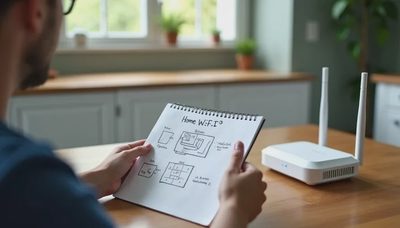
The dead spot in our house showed up exactly where family technology tends to matter most: the kitchen table. Maya was trying to join a video call after a nursing shift, Lily was submitting homework, and the Wi-Fi signal had apparently decided that the refrigerator was its final frontier. Learning how to setup wifi extender can solve that problem without replacing a working router or buying another monthly service.
A Wi-Fi extender, sometimes called a repeater or booster, receives your router’s wireless signal and rebroadcasts it farther into the house. The cheap version worked fine for our needs, but only after I stopped treating the extender like a magic plug. Placement, setup mode, and network settings make a much bigger difference than a box promising coverage for an enormous mansion.
Before setup, find the actual weak spot
Start by checking the signal where you need it. Walk around with a phone while connected to your home network. Open a few ordinary websites or stream a short video from the bedroom, garage, upstairs hallway, or whichever room gives you trouble. A connection that loads slowly in one corner but works normally beside the router is a coverage problem. A connection that is slow everywhere could involve your internet plan, router, cable modem, or service provider instead.
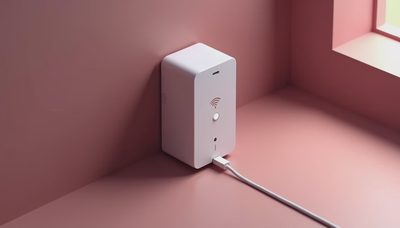
An extender should sit between the router and the weak area, not inside the dead zone. If the signal cannot reach the extender reliably, the extender simply repeats a bad connection. Put it on a wall outlet roughly halfway between the router and the problem room. Keep it away from a microwave, thick masonry, large metal appliances, and the floor behind furniture. A hallway outlet often beats the convenient outlet behind a television.
For a two-story home, test the landing or stairway before placing the unit in an upstairs bedroom. For a detached garage, an extender inside the house may not be enough. Exterior walls, wiring, and distance can make a mesh system or wired access point more practical, but try the inexpensive placement change first.
How to setup wifi extender step by step
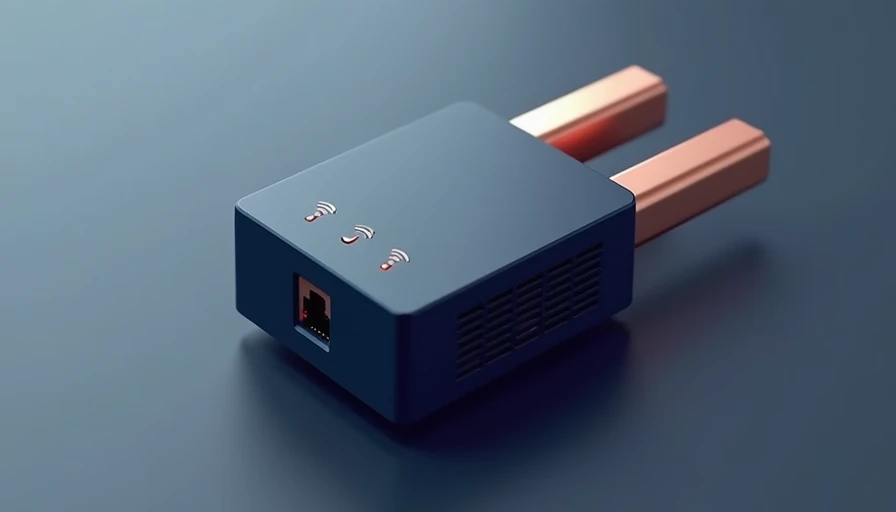
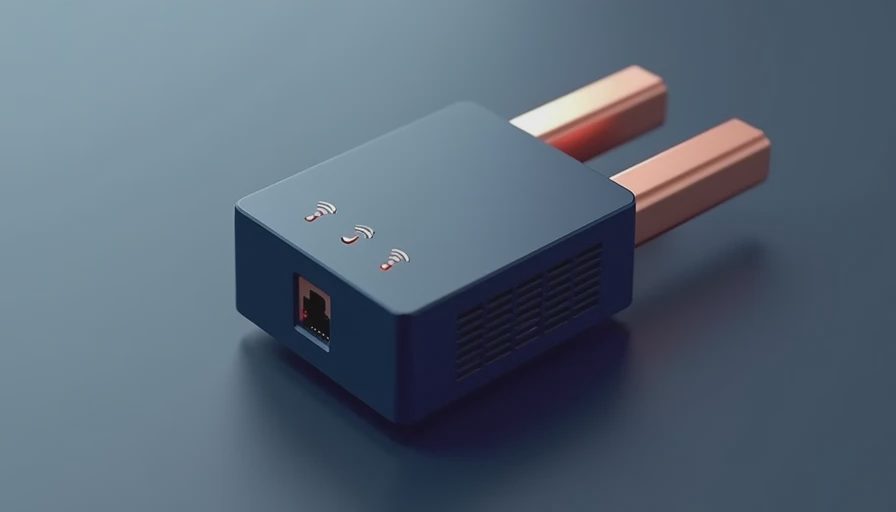
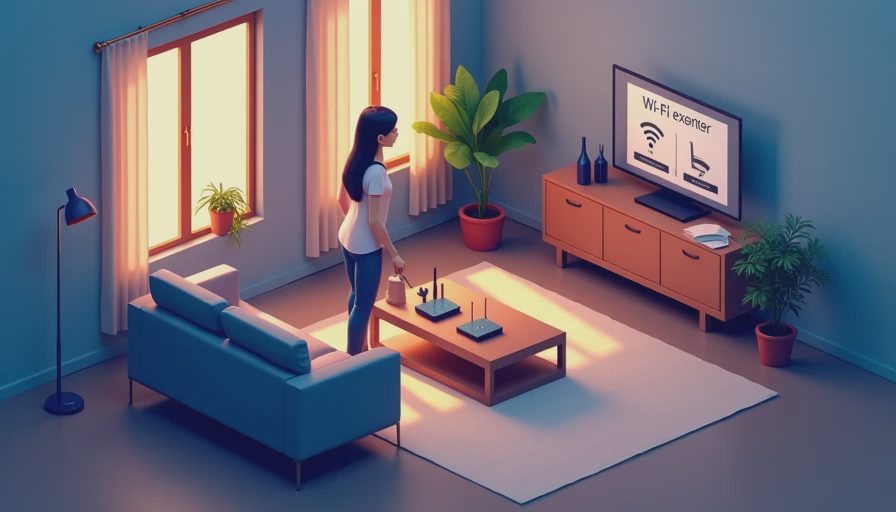
The exact menu names differ among TP-Link, NETGEAR, Linksys, and similar brands, but the process is usually straightforward. First, plug the extender near the router for initial setup. Wait for its power light, then use the manufacturer’s app or connect to the temporary setup network printed on the label or quick-start card.
Choose your existing home Wi-Fi network when prompted. Enter the Wi-Fi password carefully; one missing character can send you into an unnecessary troubleshooting spiral. Many models let you use the same network name and password as the router. That is convenient because phones and smart devices can reconnect automatically, although some inexpensive extenders handle roaming less smoothly. A separate name such as “Home-Extend” makes it obvious when a device is connected to the extender and can simplify testing.
After saving the settings, unplug the unit and move it to the location you selected. Give it a minute or two to reconnect. Most models use a green, white, or amber light to show signal quality, but read the supplied instructions rather than guessing from color alone. Connect your phone to the extended network and test the room that caused the original complaint.
If you are wondering how to setup wifi extender using a WPS button, press WPS on the router, then press WPS on the extender within the time window described by the manufacturer. This can be the fastest method, but app-based setup usually exposes more useful settings and is easier to repeat if pairing fails.
Fix the common problems before buying anything
The most common failure is placement. Moving an extender six or eight feet toward the router can improve the result more than moving it six or eight feet toward the dead room. Run a speed test beside the router, beside the extender, and in the original weak spot. The extender will normally deliver less speed than a device connected directly to the router, because it is receiving and sending traffic over wireless radio.
If the extender keeps disconnecting, restart the router and extender, update the extender’s firmware through its official app, and confirm that the Wi-Fi password has not changed. A crowded apartment building can also create interference. In the router or extender settings, try a less congested channel if the device offers that option. Avoid downloading random “booster” apps; a phone app cannot increase the radio power of your router.
If only one device fails, forget the saved Wi-Fi network on that device and reconnect. Older smart plugs, printers, and cameras may work only with a 2.4 GHz network. That band travels farther than 5 GHz but is generally slower and more crowded. Keep a written note of the network name and password in your household reference book, rather than resetting every device when one setting changes.
Privacy and subscription choices
A basic extender does not need a paid cloud plan to repeat your home network. Some brands offer optional apps, remote management, parental controls, security scans, or support subscriptions. Those features can be useful for a large household, but they are not required for ordinary coverage. During setup, read each screen before accepting a trial. A free 30-day plan can become another $3 to $10 monthly charge that nobody remembers six months later.
Use the official app downloaded from the manufacturer’s website or your phone’s normal app store. Avoid third-party setup guides asking for unusual permissions, payment details, or your router administrator password. Change the extender’s administration password if the setup process allows it, and keep router firmware current. The Wi-Fi password protects access to the network; the administrator password controls the equipment, so they serve different purposes.
Do not place an extender in a child’s bedroom solely to improve a tablet connection if a hallway location works. Better coverage is useful, but it should not quietly become an invitation to add another screen to bedtime. Technology earns its place when it removes friction, not when it creates one more dashboard to supervise.
When an extender is the wrong answer
An extender is a sensible first step for a modest dead zone, a home office with occasional video calls, or a streaming television that sits just beyond reliable coverage. It is less appealing when your home has several floors, thick plaster or brick walls, many simultaneous users, or frequent large file transfers. In those cases, a mesh system such as eero, Google Nest Wifi, or TP-Link Deco may provide smoother roaming, though it costs more and introduces another hardware ecosystem.
Ethernet is often the strongest option. If you can run a network cable to the office or entertainment area, a wired access point avoids the wireless repeat-and-rebroadcast penalty. That takes more installation effort, but a single cable can be more dependable than repeatedly moving an extender around the house.
Before replacing everything, borrow a compatible unit or buy from a retailer with a clear return policy. Test coverage at the kitchen table, upstairs desk, porch, and garage workbench during the times your family actually uses them. A theoretical coverage map is less useful than Lily’s homework upload working at 7:30 p.m.
A calm final setup checklist
To review how to setup wifi extender successfully, begin with the router’s location and identify the weak room. Pair the extender near the router, select the correct network, enter the password, and move the device halfway toward the weak area. Test actual browsing and video calls, then adjust placement before changing advanced settings. Keep the extender’s firmware current, skip subscriptions you do not need, and label the device so nobody unplugs it while looking for a spare outlet.
If coverage improves but speed disappoints, compare the result with a wired connection or a mesh unit instead of endlessly chasing settings. If the original router is more than several years old, replacing it may help more than adding a repeater. My practical verdict is simple: use an extender for one stubborn dead spot, choose mesh for a genuinely large or busy home, and leave the subscription bundle alone unless you can name the feature you need. Use what helps. Fix what matters.