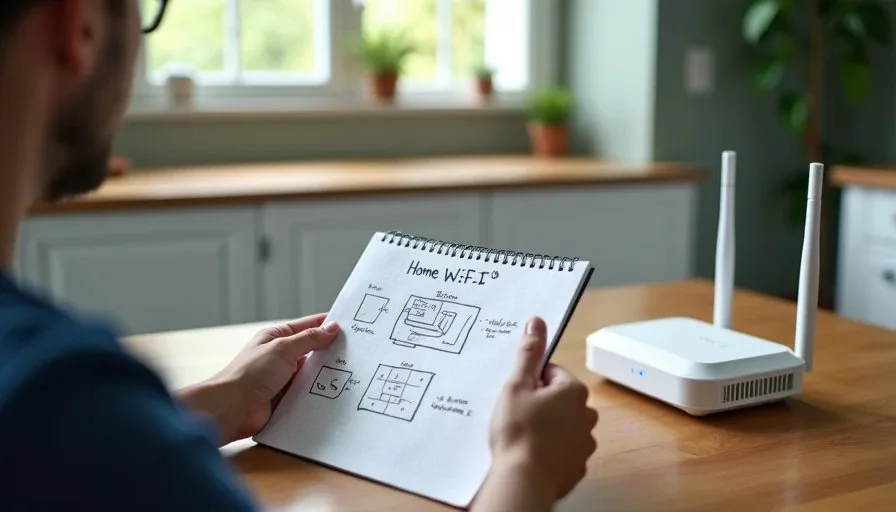
Most families blame the router before they understand the problem. The video buffers, a child yells from the bedroom, and someone says, "We need a new router." Sometimes that is true. Often it is not. A home Wi-Fi plan is simply a clear look at where your internet comes from, where it needs to go, and what is getting in the way. I have set up family Wi-Fi in apartments, old houses, and a three-bedroom home in Raleigh with walls that seem to be made of signal-blocking material. The pattern is always the same: the fix starts with a plan, not a purchase.
This guide is for parents who want reliable Wi-Fi without becoming a network engineer. It is part of The Family Setup series, where the goal is technology that works on a Tuesday morning, not in a perfect laboratory. You do not need to know what a subnet is. You need to know where your router sits, how far the signal travels, which devices matter most, and when a modest upgrade is actually worth the money.
Why Most Family Wi-Fi Problems Are Not Router Problems
The Router Is Usually Doing Its Job
A router's job is to move data between your devices and your internet provider. In most homes, the router is doing that job. The problem is usually coverage, placement, interference, or too many devices competing for the same signal. Replacing the router can help, but only if the new router solves the actual problem. If the issue is that the router is buried behind a television in a corner of the house, a new router in the same spot will have the same problem.
The Real Causes of Bad Wi-Fi
In my experience, family Wi-Fi problems usually come down to a few causes. The router is in a bad location. The Wi-Fi band is crowded. An old device is slowing down the network. The internet plan is too slow for how many people are streaming at once. Or the house is simply too large for one router to cover. Each of these has a different fix, and none of them require guessing. That is why a home Wi-Fi plan starts with a walkthrough, not a shopping cart.

Step 1: Map Where Wi-Fi Matters Most
List the Rooms and Devices
Before you change anything, walk through your home and make a simple list. Which rooms need strong Wi-Fi? Which devices use it the most? In our house, the important spots are the kitchen, the living room, and the kids' bedrooms. The devices that matter most are the tablets, the streaming TV, and the laptops used for school and work. The garage and the backyard are nice to have, but they are not priorities.
Write this down. It sounds obvious, but most families have never actually listed where Wi-Fi needs to work. When you know the priority spots, you can test them one by one instead of guessing.
Identify the Heavy Users
Next, identify the heavy users. Video streaming, video calls, and online games use more bandwidth than email or browsing. If three people are streaming different shows while someone else is on a work call, even a good router can struggle. Knowing who uses what helps you decide whether you need a faster internet plan, a better router, or simply a schedule that spreads out the heavy use.
Step 2: Test Your Current Coverage Honestly
The Room-by-Room Test
Take a phone or laptop to each priority room and run a simple speed test. Do this at different times of day, because Wi-Fi performance changes when neighbors are online and when your family is streaming. Write down the results. You are not looking for perfect numbers. You are looking for dead zones and weak spots.
In our house, the kitchen tested well, the living room was fine, and the back bedroom was consistently weak. That told me the problem was coverage, not speed. A different router in the same spot would not have fixed it.
The Device Test
Check how each device performs. An older tablet may struggle even when the Wi-Fi signal is strong. A smart TV in the corner may have a weak antenna. Sometimes the fix is a device setting, not a network change. For example, moving a streaming device away from a metal cabinet or a wall can improve its connection noticeably.
Step 3: Fix Placement Before You Buy Anything
Move the Router Out of the Closet
The single most common fix I have seen is moving the router. Routers belong in the open, ideally in a central location, off the floor, and away from metal, concrete, and large appliances. I have helped neighbors improve their Wi-Fi simply by taking the router out of a closed cabinet and placing it on a shelf. No new hardware. No new cost. Just a better location.
If your router is in a basement corner or behind a television, try moving it before you spend money. You may be surprised by how much difference it makes.
Avoid Interference
Other devices can interfere with Wi-Fi. Cordless phones, baby monitors, microwave ovens, and some smart home devices can cause problems, especially on the 2.4 GHz band. If your router supports both 2.4 GHz and 5 GHz, use 5 GHz for devices close to the router and 2.4 GHz for devices farther away. This one setting change can improve stability for the whole family.

Step 4: Decide Whether You Need a Mesh System
When One Router Is Enough
If your home is under about 1,800 square feet and the router is centrally located, one good router is usually enough. In that case, focus on placement, settings, and the internet plan. You do not need a mesh system just because it is popular.
When a Mesh System Helps
If you have a larger home, thick walls, or a dead zone that placement cannot fix, a mesh system with two or three nodes can help. Mesh systems are easier to manage than range extenders because they use one network name and hand devices off between nodes. For most families, a two-piece mesh kit is enough. Look for one that is easy to set up from a phone app, because both parents need to be able to manage it.
Before you buy, read the return policy. Mesh systems are not cheap, and if the first placement does not work, you want the option to try a different setup or return it.
Step 5: Set Up the Network for the Whole Family
Name the Network Clearly
Use a network name that is easy to recognize and does not include personal information like your last name or address. Something simple like "MercerHome" or "FamilyWiFi" works well. Avoid names that invite attention. A clear name makes it easier for guests and family members to connect.
Create a Guest Network
A guest network keeps visitors off your main network and makes it easier to share Wi-Fi without sharing your main password. Most modern routers support this in the app. It is a small step that improves both security and convenience.
Write Down the Password
This sounds obvious, but families lose Wi-Fi passwords constantly. Write the password down and keep it somewhere both parents can find it. Better yet, save it in your family password manager. If you have a guest network, save that password too.
A Simple Home Wi-Fi Plan Checklist
List the rooms and devices that matter most.
Test coverage room by room at different times.
Move the router to an open, central, elevated spot.
Separate 2.4 GHz and 5 GHz devices where possible.
Check for interference from other electronics.
Decide whether one router or a mesh system fits your home.
Name the network clearly and create a guest network.
Save the passwords in a family password manager.
Re-test after each change before buying new hardware.
When to Call Your Internet Provider
Sometimes the problem is not inside your home. If your speed tests are consistently far below what you pay for, call your internet provider. Ask them to check the signal to your modem. If the modem is old, they may replace it. If your plan is too slow for your family's usage, they can explain upgrade options. Do this after you have tested your home setup, so you can describe the problem clearly.
A Better Plan Beats a Bigger Router
A home Wi-Fi plan will not make your internet perfect. Nothing does. But it will help you understand what is actually wrong before you spend money. In our house, the biggest improvements came from moving the router, separating the Wi-Fi bands, and being realistic about how many devices can stream at once. Those changes cost nothing. The mesh system we added later solved a real coverage problem, but only after we understood the problem.
If your family is fighting with Wi-Fi, start with a walkthrough. List the priorities. Test the coverage. Move the router. Then decide. You may find that the fix was never a new router at all. You may just need a better plan.
Let technology help you live your life—don't let your life revolve around technology.