

Two-factor authentication sounds like something an IT department talks about, not something a busy parent needs to think about on a Tuesday night. But it is one of the simplest steps you can take for family account security, and it protects the accounts that matter most: email, banking, school portals, and the Apple or Google account that holds your family's photos. This plain-English guide to two-factor authentication is written for parents who want real protection without a computer science degree.
I have set up 2FA on dozens of accounts, both at work and at home in Raleigh. I have also watched smart people get locked out of their own accounts because they set it up in a hurry and did not write anything down. Two-factor authentication is not hard, but it does have a few traps. The goal of this guide is to help you set it up correctly the first time, understand which method to choose, and avoid the mistakes that cause more stress than they prevent.
What Two-Factor Authentication Actually Means
A Second Lock on the Same Door
Think of your password as a key. If someone copies that key, they can walk right in. Two-factor authentication adds a second lock that needs a different kind of key. Usually, that second key is a code from your phone, a tap on an app, or a small physical device. The point is simple: even if someone steals your password, they still cannot get in without the second factor.
That is the whole idea. You are not making your password stronger. You are adding a separate step that a stranger is unlikely to have. For families, this matters because the same email address often unlocks a child's school account, a streaming subscription, and a password reset for everything else.
Why Parents Should Care First
Parents often hold the keys to more accounts than they realize. Your email address is probably the recovery address for your child's school portal, your banking app, your insurance, and your family's photo library. If someone gets into that email, they can reset passwords for almost everything else. That is why I usually recommend protecting email first, then banking, then the family Apple or Google account.
This is not about fear. It is about priorities. You do not need 2FA on every single account today. You need it on the accounts that would cause the most trouble if they were compromised.
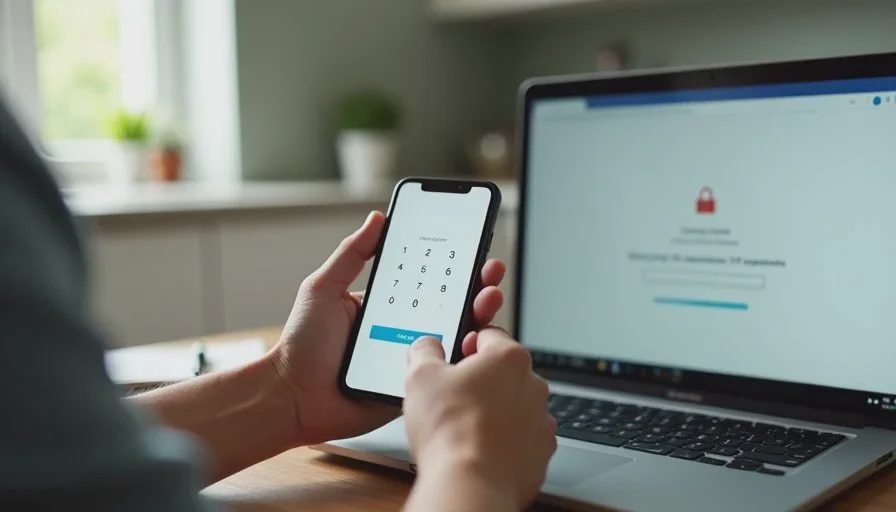
Which Accounts to Protect First
Your Primary Email
Start here. Your primary email is the master key to your digital life. Turn on two-factor authentication for it before anything else. Gmail, Outlook, and most major providers support it. This single step protects password resets for many other services, which makes it the highest-value change you can make.
Banking and Financial Apps
Next, protect your banking apps, credit card accounts, and any service that holds payment information. Most banks already require some form of verification, but check that it is turned on and that the phone number on file is current. An outdated phone number is one of the most common reasons people get locked out.
The Family Apple or Google Account
If your family uses a shared Apple ID or Google account for photos, purchases, or device setup, protect that account too. It often holds years of photos and a payment method. It is also the account that controls Find My, which matters if a child's device goes missing. Set up 2FA here, and make sure both parents have access.
School and Medical Portals
School portals and medical accounts are easy to overlook, but they often contain personal information about your children. If the portal offers two-factor authentication, turn it on. It is a small step that protects information you would not want exposed.
Choosing the Right 2FA Method
Text Message Codes
Text message codes are the most common method, and they are better than nothing. You receive a six-digit code by SMS and type it in. The downside is that SMS is not the most secure option, and it depends on your phone having signal. If you travel or live in an area with weak coverage, this can be frustrating. Still, for many parents, it is the easiest starting point.
Authenticator Apps
Authenticator apps generate codes on your phone without needing a text message. They are generally more secure and work offline. Popular options include Google Authenticator, Microsoft Authenticator, and Authy. I use an authenticator app for my most important accounts. The setup takes a few extra minutes, but once it is done, it is reliable.
Security Keys and Passkeys
Physical security keys and passkeys are the strongest options, but they add complexity. A security key is a small USB or NFC device you tap to log in. Passkeys use your phone's fingerprint or face unlock instead of a password. These are excellent for tech-comfortable families, but they can be confusing if only one parent understands how they work. If you choose this route, make sure both parents know how to use it.

How to Set Up 2FA Without Getting Locked Out
Save Your Backup Codes
This is the step almost everyone skips, and it is the step that causes the most pain. When you turn on two-factor authentication, most services give you a list of backup codes. These codes let you get back in if you lose your phone. Print them, write them down, or store them in your family password manager. Do not leave them only on the phone that provides your second factor. If that phone is lost or broken, you will need those codes.
Make Sure Both Parents Have Access
Apply the Two-Parent Test here as well. If only one parent can approve a login or access the backup codes, the family account security depends on one person. Both parents should be able to log in, approve a new device, and find the backup codes. This is not about trust. It is about making sure a lost phone or a business trip does not turn into a lockout.
Check Your Recovery Phone Number and Email
Before you finish, check the recovery phone number and email on the account. An old phone number is a common cause of lockouts. Update it if it is out of date. Make sure the recovery email is one you actually check. If you are setting up 2FA for a child's account, use a parent's email as the recovery address.
Avoid Relying on One Device
If your second factor is only on one phone, you have a single point of failure. Where possible, add a second method. Many services let you add a backup phone number, a second authenticator app, or a security key. Even a printed backup code counts. The goal is to make sure a broken phone does not lock you out of your own accounts.
What About My Child's Accounts?
When to Turn On 2FA for a Child
For younger children, 2FA usually sits with the parent. You control the recovery email and the second factor. For teenagers, the picture changes. They may need access to their own accounts, and they may resist a parent holding the second factor. A reasonable approach is to turn on 2FA together, use an authenticator app on the teen's phone, and keep backup codes in a shared family password manager.
Explaining 2FA to a Child
You do not need a technical explanation. I tell my kids that a password is like a key and two-factor authentication is like a second lock that needs a code from a phone. I explain that if someone steals the key, they still cannot get in. That is enough for most children to understand why the extra step exists.
Common Mistakes to Avoid
Using a Phone Number You Might Lose
If your recovery phone number is a landline or an old number, change it. If you are planning to switch carriers, update your recovery information first. A stale number is a lockout waiting to happen.
Skipping Backup Codes Because You Are Tired
I understand the temptation. Setup is almost done, and the backup codes seem like extra work. But they are the safety net. Print them and put them somewhere safe. This one step has saved me more than once.
Setting It Up for Only One Parent
If both parents manage the family accounts, both need access to the second factor and the backup codes. Otherwise, the setup is fragile.
A Simple Starting Plan for This Week
If you do nothing else, protect your primary email with two-factor authentication. Then protect your banking app and your family's Apple or Google account. Save the backup codes. Make sure both parents can log in. That is a strong start, and you can add more accounts later.
Two-factor authentication is not glamorous, and it will not make headlines. But it is one of the most practical steps you can take for family account security. It adds a few seconds to a login and removes a large amount of risk. For busy parents, that is a trade worth making.
Let technology help you live your life—don't let your life revolve around technology.