
When Avery got her first tablet, I spent an hour setting up parental controls. I felt good about it. Then she installed a drawing app, and I realized I had never checked that app's privacy settings. It wanted access to her microphone, her location, and her contact list. For a drawing app. That moment taught me something important: child privacy settings for apps are not a one-time setup. They are a habit. Every new app is a new set of choices, and most of those choices are buried in menus that nobody reads.
I spent more than a decade in IT support, and I now write about family technology from my kitchen table in Raleigh. I am not a privacy lawyer, and I am not here to make you afraid of every app your child uses. But I have reviewed enough apps to know that the default settings are usually designed for engagement, not for your family's privacy. This guide covers five privacy settings to check on every child's app. It is part of the Safe by Default series, where the goal is protection without paranoia.
Why App Privacy Matters for Families
The Default Is Not Your Friend
Most apps are designed to collect as much data as they can get away with. That is not a conspiracy. It is a business model. The default settings often allow more data collection than a parent would choose if they were asked directly. The problem is that parents are rarely asked directly. The settings are buried, the language is vague, and the permission prompts appear when a child is eager to start using the app. Checking these settings is not about distrust. It is about making a conscious choice instead of accepting whatever the app decided for you.
What Can Go Wrong
The risks are usually not dramatic. A drawing app does not need your child's location. A game does not need access to contacts. A video app does not need the microphone when it is not recording. But when apps collect more than they need, the data can be used for targeted advertising, shared with third parties, or stored in ways you cannot control. For children, the stakes are higher because they cannot evaluate those trade-offs themselves. That is a parent's job.

Setting 1: App Permissions
What to Look For
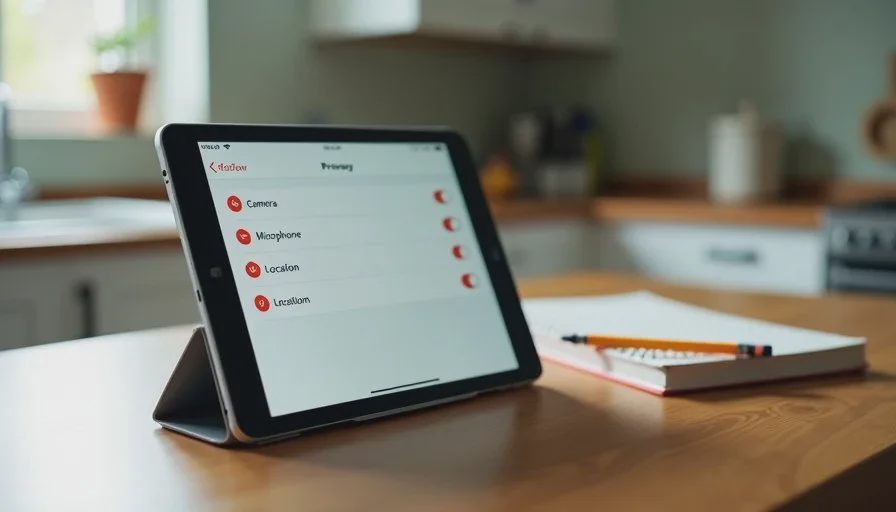
Every app asks for permissions. Camera, microphone, location, contacts, photos, and notifications are the common ones. The question to ask is simple: does this app need this permission to do what my child uses it for? A video call app needs the camera and microphone. A drawing app does not. A maps app needs location. A puzzle game does not.
Go through each permission one by one. On both Android and iOS, you can review permissions in the app settings. Turn off anything the app does not genuinely need. If the app stops working, you can turn it back on. In my experience, most apps work fine with fewer permissions than they request.
The Microphone and Camera Trap
The microphone and camera permissions deserve special attention. An app with microphone access can listen in the background on some systems. An app with camera access can take photos or record video. For a young child, I usually turn both off unless the app is specifically for video calls or photo sharing with family. If your child uses a messaging app, check whether the app allows unknown contacts to initiate calls. That setting matters more than most parents realize.
Setting 2: Location Tracking
Why So Many Apps Want Location
Location data is valuable. It helps apps show local content, target ads, and build profiles. For a child's app, location access is rarely necessary. A drawing app, a game, a reading app, and most educational tools do not need to know where your child is. Turn location off unless the app has a clear, specific reason to use it.
The Difference Between "While Using" and "Always"
If an app genuinely needs location, choose "While Using the App" instead of "Always." The "Always" option allows the app to track location in the background, even when your child is not using it. For children, "Always" is rarely the right choice. I have not found a single child's app in our home that needed background location access.
Setting 3: Advertising and Tracking
Personalized Ads
Many free apps make money through advertising. Personalized ads use data about your child's behavior to show more relevant ads. You can often turn off personalized ads in the app settings or in your device's privacy settings. On iOS, look for "Allow Apps to Request to Track" and turn it off for apps you do not trust. On Android, check the ads settings in your Google account and in individual apps.
Turning off personalized ads does not remove ads. It reduces the amount of data collected about your child. For younger children, I usually turn off personalized ads entirely. For teenagers, I explain what the setting does and let them decide, because they are old enough to understand the trade-off.
Third-Party Data Sharing
Some apps share data with third parties for analytics or advertising. This is often buried in the privacy policy, which most people never read. In the app settings, look for options like "Share Data with Partners" or "Improve Ads." Turn them off. If the app does not offer those options, consider whether your child really needs it.
Setting 4: In-App Purchases and Spending
The Accidental Purchase Problem
In-app purchases are a privacy issue as well as a financial one. An app that has your payment information can charge you for virtual items, subscriptions, or upgrades. Children often tap without understanding what they are buying. Require a password or biometric confirmation for every purchase. On both Android and iOS, you can set purchases to require approval every time. Do not rely on a default grace period.
Subscription Traps
Some apps offer a free trial that automatically becomes a paid subscription. Check the subscription settings on your child's device and in the app store. Cancel anything you did not intend to keep. I check our family's subscriptions every few months. It takes five minutes and has saved us more than one forgotten charge.
Setting 5: Visibility and Contact Settings
Who Can See and Contact Your Child
If your child uses any app with a social or messaging feature, check who can contact them. The safest default is "Friends Only" or "No One." Unknown users should not be able to send messages, friend requests, or comments. This setting is often separate from the general privacy settings, so look for it specifically.
Profile Visibility
Check whether your child's profile is public or private. A public profile can be seen by anyone, including strangers. For younger children, keep profiles private. For teenagers, discuss the risks and set expectations together. A private profile is not a guarantee of safety, but it reduces unnecessary exposure.
A Simple Routine for Busy Parents
Check New Apps Before Your Child Uses Them
Before your child installs a new app, review the permissions and privacy settings. This takes a few minutes per app. Do it together if your child is old enough to understand. The goal is not to say no to everything. The goal is to make an informed choice.
Review Settings Every Few Months
Apps update their settings and policies. A setting you turned off last year may have been reset or changed. Set a reminder to review your child's apps every few months. I do this at the same time I check subscriptions. It is a small habit that prevents surprises.
Teach Your Child to Ask
The most durable privacy protection is a child who asks before installing something new. Teach your child to check with you before downloading an app. Explain why. When children understand that privacy settings protect them, they are more likely to cooperate. It also builds a habit they will carry into adulthood.
Privacy Is a Practice, Not a One-Time Setup
Checking five privacy settings on every app will not make your child's digital life perfectly safe. Nothing will. But it will reduce unnecessary data collection, limit who can contact your child, and prevent accidental purchases. More importantly, it builds a habit of paying attention. That habit matters more than any single setting.
The apps will keep changing. New features will appear, and old settings will move. What stays constant is the principle: your child's privacy is worth a few minutes of your attention. Check the permissions. Turn off what is not needed. Keep the conversation going. That is how you make privacy the default in your family, one app at a time.
Let technology help you live your life—don't let your life revolve around technology.