
When a website keeps eating your attention, the useful question is not only how to block a website on my phone, but which level of blocking fits the problem. You might want to stop a distracting news site during work, keep gambling pages away from a shared device, or help a child avoid content that does not belong on a nine-year-old's screen. The good news is that an iPhone or Android phone can handle most of this without another subscription.
The best method depends on whether you need a gentle reminder, a scheduled limit, or a barrier that is difficult to bypass. I prefer starting with built-in controls because they cost nothing, collect less information than many third-party apps, and are easier to undo when circumstances change.
How to block a website on my phone using an iPhone
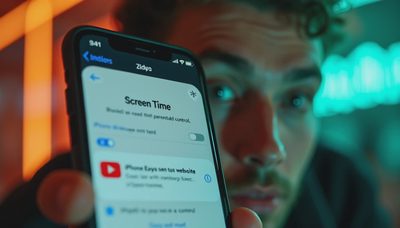
On an iPhone, Apple's Screen Time tools are the practical starting point. Open Settings, choose Screen Time, and turn it on if it is not already active. Then select Content & Privacy Restrictions, open Content Restrictions, and tap Web Content. You can choose Limit Adult Websites, which automatically filters many adult sites, or Allowed Websites Only, which creates a much tighter list for a child's device.
For a single address, select Limit Adult Websites and look for the Never Allow section. Tap Add Website, enter the domain, and save it. Entering the main domain is more useful than blocking one long page address because websites often move content between different pages. If the site uses several related domains, you may need to add each one.
This is also where you can set a Screen Time passcode. Do not use the phone's unlock code if the person you are trying to guide knows it. For a child, the passcode should be controlled by the parent. For your own phone, ask whether a little friction is enough. A blocked page that can be restored in twenty seconds is not a serious barrier, but it can still interrupt an automatic habit.

If you are still wondering how to block a website on my phone when the problem is repeated checking rather than unsafe content, use Downtime or App Limits as well. Screen Time can limit Safari and other browsers during selected hours, although broad app limits affect more than one site. A weekday schedule from 9 p.m. to 7 a.m. can be more useful than blocking every page individually, especially when the real goal is sleep.
How to block a website on my phone using Android
Android settings vary slightly by manufacturer and version, so there is no single menu path for every Galaxy, Pixel, or Motorola phone. For a child's Android device, Google Family Link is usually the clearest built-in approach. Install Family Link on the parent's phone, connect the child's Google account, select the child, and open Controls. Under Google Chrome and Web, you can choose to try blocking mature sites or manage approved and blocked websites.
To block one site, open the web filtering area, choose Manage sites, and add the domain under Blocked. Family Link works best when the child's account and device are properly supervised. If the child can switch to an unsupervised account, install another browser, or use a guest profile, the filter may not accomplish much. Check the phone after setup rather than assuming the setting covers every route to the internet.
For an adult managing personal distractions, Digital Wellbeing is less precise but often sufficient. Open Settings, choose Digital Wellbeing and parental controls, and review the dashboard. Chrome usually appears with its own usage time. Setting a short daily limit creates a pause when the limit is reached. It does not always provide a true site-by-site block, but it avoids installing a monitoring app just to stop thirty minutes of scrolling.
The minimum-effort answer to how to block a website on my phone is often a browser extension or a focused blocking app, but read the permissions first. A reputable tool should explain whether it can see browsing history, read page content, or share usage data. A free app that demands access to contacts, microphone, and location is asking for far more than a website filter needs.
Choose the right kind of block
There are three different jobs people often combine when asking how to block a website on my phone. The first is distraction control. For that, schedules, Screen Time, Digital Wellbeing, or a simple blocker are usually enough. The second is family safety. That calls for a parent-managed passcode, supervised accounts, and a review of other browsers. The third is network-level filtering, where the goal is to cover several devices in the home.
Network filtering can be handled through some home routers, DNS services, or parental-control products. It can cover phones connected to home Wi-Fi, but it usually does not cover cellular data when someone leaves the house. Router settings also affect everyone on the network, which is inconvenient if one adult needs access to a site for work. A phone-level setting is more portable; a home filter is broader. Neither is automatically the right answer.
Before changing anything, write down the actual goal. “No sports scores during the workday” suggests a schedule. “No shopping sites after dinner” suggests a time window. “A child should only reach school and library sites” suggests an allowlist. This small distinction prevents the common mistake of buying a $5-to-$15 monthly app when a built-in setting would have done the job.

Test the block and protect the privacy tradeoff
After you block a site, test it in every browser installed on the phone. Try Safari and Chrome on an iPhone, or Chrome and any manufacturer browser on Android. Also check whether the site opens inside an app, through a search result preview, or through a shortened link. You do not need to conduct an elaborate security audit, but you should confirm that the setting matches the intended result.
For family use, explain the boundary in plain language. A child is more likely to cooperate when the rule is “this site is unavailable after bedtime” than when the phone mysteriously stops working. Review the list once a month. Old blocks become annoying clutter, and forgotten restrictions can interfere with homework, medical research, or a legitimate purchase.
Privacy matters here because many blocking services route browsing information through their own systems. Built-in Apple and Google controls are not perfect privacy guarantees, but they usually require fewer new accounts than a commercial monitoring platform. If an app advertises detailed reports, remote screenshots, or constant activity tracking, decide whether that visibility is genuinely needed before paying for it.
A simple setup for a calmer household
If you want a dependable starting plan, block the worst single site first, add a nighttime schedule, and keep the passcode away from the person who is likely to bypass the setting. On a child's phone, use Family Link or Screen Time with an approved-sites approach when the situation calls for stronger boundaries. On your own phone, begin with Digital Wellbeing or Screen Time before adding an app.
The useful answer to how to block a website on my phone is not the most aggressive tool. It is the smallest setting that solves the real problem while preserving access to work, school, and ordinary family life. I would avoid paying for a dashboard when a built-in control works, and I would avoid pretending a weak block is a safety system. Test it, explain it, and revisit it when the household changes.
Use what helps. Fix what matters. In this case, a few quiet settings can do more for the evening than another complicated subscription.