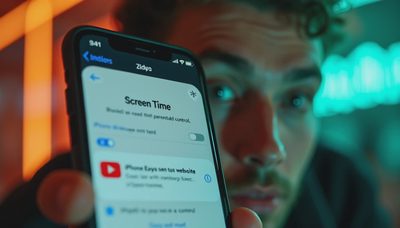

If you are searching for how to block inappropriate sites on android, you probably do not want a complicated monitoring system that generates another weekly report. You want a phone or tablet to stop opening adult content, gambling pages, malware, or other material that is not suitable for a child. The good news is that a sensible setup can usually be built with tools you already have, plus a few minutes of testing.
The best approach uses more than one layer. Google Family Link can manage a child account, browser settings can reduce accidental exposure, and a filtered DNS service can protect devices that slip outside your preferred browser. No filter is perfect, so the goal is reasonable protection, clear household expectations, and a setup you can actually maintain.
Start with Google Family Link
For a child using an Android phone or tablet, Google Family Link is the most straightforward starting point. Install the Family Link app on the parent device, connect the child’s Google account, and open the controls for content restrictions. Under Google Chrome settings, you can choose an option that attempts to block mature sites, or allow only approved websites for a younger child.
The approved-sites option is stricter. It works well for a nine-year-old who mainly needs access to a school portal, PBS Kids, a library website, and a handful of creative tools. The broader mature-site filter is more practical for an older child, but it depends on automated detection and cannot identify everything correctly.
Family Link can also limit app installations, require approval for new downloads, set daily device limits, and pause a device at bedtime. These controls are useful because inappropriate material sometimes arrives through an app, advertisement, or search result rather than a typed website. When learning how to block inappropriate sites on android, remember to manage the whole route to the content, not just the browser address bar.
Tighten Chrome and search settings
On the child’s device, open Chrome and review Safe Browsing, pop-up permissions, notifications, and site permissions. Keep Safe Browsing enabled. Block unnecessary pop-ups and prevent unfamiliar sites from sending notifications. A child can accidentally accept notifications on a game site and then receive links long after leaving the page.
Google SafeSearch can filter explicit results in Google Search, but it is not the same as blocking websites. It helps reduce graphic images and adult search results while leaving ordinary browsing available. Treat it as one layer, not a lock. Check image search, video search, and autocomplete behavior after changing the setting.
Here is the practical test I use: search for several ordinary topics a child might actually type, then try a few clearly adult terms. Confirm that normal homework sites still work and that filtered searches do not simply redirect to a different search engine. If the child uses Chrome without being signed into the supervised account, the controls may not apply as expected.
Add a filtered DNS service for another layer
DNS is the system that translates a website name into the server address your device needs. A filtered DNS service can block categories such as adult content, malware, phishing, and sometimes gambling before the browser loads the page. CleanBrowsing and Cloudflare’s family-oriented DNS option are familiar examples, although features and setup methods differ.
On Android, open Settings, search for Private DNS, and enter the hostname supplied by the service rather than guessing an address. Some providers also offer an app, which can be easier when a family needs account controls or activity visibility. Test the connection afterward by opening several normal sites and a known blocked test page supplied by the provider.
DNS filtering is valuable because it can protect multiple browsers, not only Chrome. It can also cover a tablet used by several family members. Its weak spot is that it may not work when a child switches to mobile data, uses a VPN, changes the Private DNS setting, or uses another device. This is why how to block inappropriate sites on android is really a layered household question, not a single-setting trick.
Decide whether you need a safer browser
For younger children, a restricted browser can reduce the number of decisions they must make. Google Family Link’s approved-site approach is often enough. For a shared tablet, you might instead use a child-focused browser with built-in filtering, but read its privacy policy before installing it. Some free products make money through advertising, analytics, or data collection, which can defeat the point of creating a quieter family device.
Do not install three competing parental-control apps unless you have a clear reason. They can slow the device, duplicate alerts, and create confusing permission requests. Start with Family Link and a reputable DNS filter. Add a separate browser only if the basic arrangement leaves a specific gap.
This is where I stopped trying to be clever in our own household. A short list of approved apps, no app installations without permission, and a bedtime pause solved more problems than a dashboard full of colorful charts. Technology should reduce the number of arguments, not provide new material for them.

Protect the settings from easy workarounds
A filter is only useful if the child cannot casually remove it. Use a parent Google account with a strong, unique password and keep the account recovery methods current. Do not share the parent password to make a one-time download easier. That shortcut tends to become permanent.
Review whether the child can install a VPN, change Private DNS, add another user profile, use guest mode, or reset the browser. Android menus vary by manufacturer, so look through Settings rather than relying on a universal path. Samsung Galaxy, Motorola, and Google Pixel devices may label similar controls differently.
Also check the home Wi-Fi router. Many routers support parental controls, scheduled access, or category filtering. Router-level controls can help with game consoles, smart TVs, and laptops, but they will not protect a phone using cellular data. Set reasonable schedules rather than blocking the internet all day; a child may need access for homework, transportation, or an evening call.
Test the setup and explain the boundary
After learning how to block inappropriate sites on android, test the result from the child’s actual device. Try Chrome, another installed browser, image search, video links, and a site that should remain available. Turn Wi-Fi off briefly to see what happens on cellular data, then turn it back on. If a restriction fails, fix the gap without assuming the child caused it.
Explain what the controls do in plain language. Say that filters reduce accidental exposure and limit some categories, but they cannot replace judgment or conversation. Ask the child to show you if a page looks strange, requests money, asks for a password, or keeps opening new tabs. This turns safety into a household process instead of a secret surveillance project.
For older children, include privacy and consent in the discussion. Avoid reading every message simply because a control app offers access. Review settings openly, agree on what triggers a closer check, and revisit the arrangement as the child gains independence.
A simple setup checklist
A minimum-effort setup is Family Link, supervised Chrome, SafeSearch, app approval, and a nightly device schedule. A stronger setup adds filtered DNS, router controls, and a monthly test of browsers, apps, and cellular behavior. Record the parent account recovery details somewhere secure so a forgotten password does not lead to an emergency reset.
If your family has several devices, label them by user and purpose. A school tablet can have tighter restrictions than a parent’s phone. A shared living-room tablet should not contain a signed-in shopping account or saved payment cards. Remove browsers and apps nobody uses, because every extra doorway adds another setting to review.
The practical verdict is simple: use the built-in controls first, add DNS filtering when it solves a real gap, and skip expensive monitoring subscriptions unless you need their specific reporting features. No tool can replace a calm conversation, but a well-tested Android setup can remove a great deal of avoidable noise. Use what helps. Fix what matters.