
When a website keeps eating your attention, knowing how to block a site on your phone can be more useful than downloading another productivity app. Maybe it is a shopping site that turns a five-minute search into a $75 cart, a news feed that follows you into bed, or a gambling page you do not want visible on a family device. The good news is that most phones already include enough controls for a solid first attempt.
The best method depends on your phone, browser, and goal. Blocking one distracting address for yourself is different from keeping a child away from a category of sites. I will cover the minimum-effort option first, then the stronger settings that are harder to bypass. Use what helps. Fix what matters.
Start with the simplest phone setting
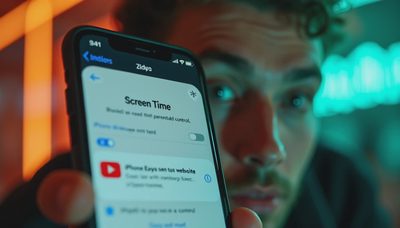
If you use an iPhone, Screen Time is the natural starting point. Open Settings, choose Screen Time, then Content & Privacy Restrictions. Turn restrictions on, select App Store, Media, Web, and Games, and open Web Content. You can choose Limit Adult Websites, which uses Apple’s built-in filtering, or Allowed Websites Only, which creates a much tighter list. Under Never Allow, add the exact website address you want restricted.
That is the clearest answer to how to block a site on your phone when the device is an iPhone shared with children. Set a Screen Time passcode that the child does not know. Otherwise, the restriction is more of a polite suggestion than a barrier. You can also set Downtime and App Limits, but remember that an App Limit controls an app or category, not necessarily one specific website.
On Android, the path varies by manufacturer and Android version. Digital Wellbeing is useful for limiting time in Chrome or another browser, but it generally is not a precise website blocker. For an individual site, a family-control app or filtered DNS service is usually more dependable. Google Family Link can manage supervised accounts, screen time, and Chrome browsing rules when the family setup supports them.

Use browser controls when the problem lives in one browser
Browser-level controls can be enough when you are trying to interrupt your own habits. In Safari, website restrictions usually work through Screen Time rather than a Safari menu. In Chrome, you can use family supervision, an extension on a managed computer, or a filtering service, but Chrome on a personal phone does not offer a universal, one-tap block list for every user.
This is where how to block a site on your phone gets slightly less tidy than the search results suggest. A browser setting can be defeated by switching from Safari to Chrome, opening a private tab, or using a different browser. If your real goal is to stop late-night shopping, a stronger practical approach is to remove saved payment details, sign out, and move the browser off your home screen. Friction works surprisingly well when the purchase is optional.
For a family device, do not rely on an extension or a bookmarklet. Children can often remove extensions, change browsers, or use a second profile. Use the phone’s parental controls, protect them with a separate passcode, and review the setup after a software update.
Choose a stronger network-wide block
If several devices in the house need the same rule, use a filtered DNS service or router-level parental control. Services such as NextDNS, CleanBrowsing, and OpenDNS offer filtering options, while some home routers include parental controls from companies such as Eero, ASUS, and TP-Link. The exact menus differ, but the basic process is similar: create an account if required, select categories or domains, and apply the service to your home network.
This approach can answer how to block a site on your phone and also cover a tablet, game console, or laptop connected to the same Wi-Fi. It is often a better fit for a household rule, such as blocking adult content or social media during homework hours. A basic DNS plan may be free, while premium family features commonly cost around $20 to $60 per year.
The limitation is cellular data. When a phone leaves home Wi-Fi, a router rule no longer applies. Some DNS providers offer a phone profile or app that continues filtering over cellular service, but that adds another account and another thing to maintain. This is why I prefer network controls for broad household categories and phone settings for one-device boundaries.

Make the block harder to undo
A restriction is only useful if the person who needs it cannot casually remove it. On an iPhone, let a trusted adult create the Screen Time passcode and keep recovery information private. On Android, use a supervised family account rather than handing over the parent account password. Keep the operating system current, because settings and menu names change.
Next, check the obvious escape routes. Is the site available through an app? Can the user install a second browser? Does the phone permit a VPN? Can the same content be reached through a shortened link or mirror domain? You do not need to play digital whack-a-mole with every address, but you should understand the boundary you are creating.
For an adult trying to change a habit, accountability can work better than a locked box. Ask a partner to hold the passcode, schedule a recurring block during work hours, or put the phone in a kitchen drawer while paying bills. The aim is not perfect control. It is enough delay to let the better decision catch up.
Privacy and family conversations matter
Website blocking tools can collect browsing data, so read the privacy policy before installing one. A free app that wants access to every URL, contact, notification, and location deserves more scrutiny than a built-in phone feature. Avoid paying for an elaborate monitoring dashboard when a Screen Time rule or DNS category does the job.
Explain the rule to children in plain language. Say what is blocked, when it applies, and how they can ask for a legitimate site to be reviewed. Overblocking homework resources creates unnecessary friction and teaches children to hunt for workarounds. A short monthly review is better than silently adding dozens of rules.
If the block concerns gambling, pornography, self-harm material, or harassment, technical settings are only one layer. Talk with the person involved and use professional or crisis support when safety is at stake. A filter can reduce access, but it cannot replace care, supervision, or a conversation.
A five-minute setup checklist
Here is how to block a site on your phone without turning the process into a weekend project. First, write down the exact goal: one distracting site, a category, or all unapproved websites. Second, identify whether the phone is an iPhone or Android and whether the rule must work on cellular data. Third, try the built-in setting before paying for an app. Fourth, protect the control with a passcode or supervised account. Fifth, test the result in the normal browser, a private tab, another browser, and cellular mode.
If the rule fails, decide whether you need a stronger tool or a simpler habit change. A router filter is useful for the home, while a phone profile is better for travel. For personal distraction, removing the app, signing out, and moving the browser may accomplish more than a complicated subscription.
The practical verdict is simple: start with built-in controls, add filtered DNS only when the household needs broader coverage, and avoid collecting more family data than necessary. That is how to block a site on your phone while keeping the phone from becoming another household management job.