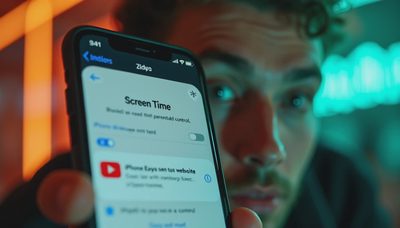

If you are wondering how do you put parental control on iphone, the short answer is Apple Screen Time. It is already built into the iPhone, costs nothing, and can handle app limits, content filters, downtime, communication controls, and purchase approvals without another monthly subscription. The confusing part is deciding which settings actually help your family instead of creating a second job for the parent holding the phone.
I prefer starting with the smallest useful setup. On a school night, a child might need Messages for a pickup change, Maps for getting home, and a calculator for homework. Blocking everything after 7 p.m. sounds tidy until the real evening arrives. Good controls protect sleep, spending, and privacy while leaving sensible tools available.
Start with Family Sharing and Screen Time
Before changing limits, make sure each child has a separate Apple Account rather than sharing an adult's login. On the parent iPhone, open Settings, tap your name, and choose Family. Add the child to the family group, then open Screen Time and select the child's name. Apple changes menu labels occasionally, so the wording can differ slightly by iOS version, but the structure remains similar.
Create a Screen Time passcode that your child does not know. Do not use a birthday, house number, or the same code used to unlock the phone. This passcode protects the settings, not the child's Apple Account password. Store it in a password manager or write it in a secure household notebook so another trusted adult can find it during a schedule emergency.
If the child is old enough to manage some settings, involve them in the conversation. Explain that the goal is not to read every message or win an argument about video games. The goal is to make the phone quiet during sleep, prevent accidental purchases, and set boundaries that are easier to follow when everyone is tired.

How do you put parental control on iphone using Screen Time?
Open Settings, choose Screen Time, and turn on the feature for the child's device. If the phone is managed through Family Sharing, select the child's profile first. Then review these areas in order:
- Downtime: Set a daily period when most apps are unavailable. A practical starting point is 9 p.m. to 7 a.m. on school nights. Allow Phone, Messages, Maps, and other genuinely necessary apps through the Always Allowed list.
- App Limits: Add limits for categories such as Games, Social Networking, or Entertainment. A single 45-minute entertainment limit is often easier to maintain than six tiny limits that produce constant requests.
- Communication Limits: Choose who can contact the child during normal use and downtime. This can be useful for younger children, but make sure emergency contacts and necessary caregivers remain available.
- Content and Privacy Restrictions: Block explicit music, adult websites, app installations, account changes, and in-app purchases as appropriate. Under iTunes and App Store Purchases, require a password or approval before buying.
- Ask to Buy: With Family Sharing, Ask to Buy can require a parent to approve eligible purchases and downloads. This is especially useful when a free game quietly offers $9.99 bundles every few minutes.
The exact settings depend on age and family routine. A nine-year-old may need a tighter web filter and no app installs. A fourteen-year-old may need more independence but still benefit from downtime and purchase approval.
Choose limits that match real family life
This is where many parental-control setups fail. Parents select dramatic restrictions during a stressful evening, then disable them three days later because homework, sports, and transportation do not fit the rule. Build around predictable pressure points instead.
For a younger child, start with no purchases without approval, app installation approval, restricted web content, and a bedtime downtime schedule. For a middle-school student, add communication limits and a review of location-sharing settings. For a teenager, consider using Screen Time mainly for sleep, spending, and privacy while discussing the rest openly.
A useful test is the Sunday night check. Look at the Screen Time report and ask three questions: Which app consumed the most time? Did the limits interrupt something necessary? Was the phone used after bedtime? If the report shows two hours of games and ten minutes of homework tools, a category limit may be reasonable. If it shows a school app used late for an assignment, adjust the schedule rather than treating the report as a moral scorecard.
How do you put parental control on iphone without over-monitoring?
Screen Time does not need to become a surveillance project. You can restrict settings without reading private conversations. Apple offers tools for communication safety and content filtering, but no automatic system understands every family situation perfectly. Use the least intrusive control that solves the actual problem.
For privacy, review Location Services, Share My Location, Contacts, Photos, Microphone, and Camera permissions. A flashlight app does not need access to contacts. A social app may not need continuous location access. Open Settings, choose Privacy & Security, and inspect permissions one category at a time. Delete apps the child no longer uses; an old account can be a forgotten source of notifications and data collection.
Also review notifications. Even a well-configured phone can make home noisy if every game, shopping app, and group chat can interrupt dinner. Turn off nonessential alerts and leave calls, family messages, school notices, and calendar reminders available. The cheapest parental-control upgrade is often fewer pings.

What to do when a child asks for more time
The Ask for More Time prompt is not automatically a failure. It can be a useful signal that the original limit needs context. A child might need ten extra minutes to finish a supervised video, send a ride-update message, or complete a school task. Approve the request when it makes sense, then ask why it came up.
Avoid negotiating every night from the lock screen. Set a regular review, perhaps Sunday afternoon, when the family can adjust limits calmly. You might increase weekend game time from 45 minutes to 90 minutes while keeping the same bedtime. Or you might remove a limit from a music app that helps with chores while leaving social media restricted.
If a child repeatedly bypasses controls, check whether they know the Screen Time passcode, whether another adult account is signed in, or whether a second device is being used. Change the passcode, update the iPhone, and review Family Sharing rather than installing a pile of third-party monitoring apps. More software usually means more accounts, more notifications, and more privacy tradeoffs.
A simple setup checklist
When deciding how do you put parental control on iphone, use this order:
- Update the iPhone and confirm the child has an individual Apple Account.
- Add the child to Family Sharing and enable Screen Time.
- Create a private Screen Time passcode.
- Set Downtime around actual sleep, not an aspirational bedtime.
- Allow essential communication and emergency contacts.
- Restrict purchases, app installations, explicit content, and account changes.
- Set one or two meaningful App Limits.
- Review privacy permissions and notification settings.
- Check the report after one week and adjust.
For families that do not want Family Sharing, Screen Time can still be configured directly on the child's iPhone. The parent needs access to the device and must protect the passcode. Family Sharing is more convenient because settings and approval requests can be handled from the parent phone.
The practical verdict
How do you put parental control on iphone? Use Apple's built-in Screen Time, begin with bedtime, purchases, privacy, and content settings, then adjust based on real use. You do not need Bark, Qustodio, or another paid service for basic limits, although some families may value their additional dashboards and alerts.
The minimum-effort version takes about fifteen minutes: enable Screen Time, set a passcode, schedule Downtime, require purchase approval, and remove unnecessary notifications. The more involved version adds Family Sharing, communication limits, privacy reviews, and weekly check-ins. Either approach is better than a dramatic rule that nobody can live with. Use what helps. Fix what matters.