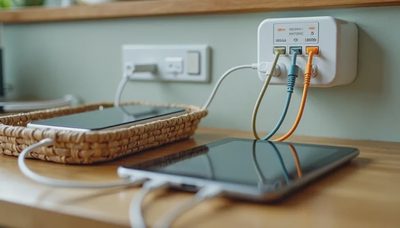
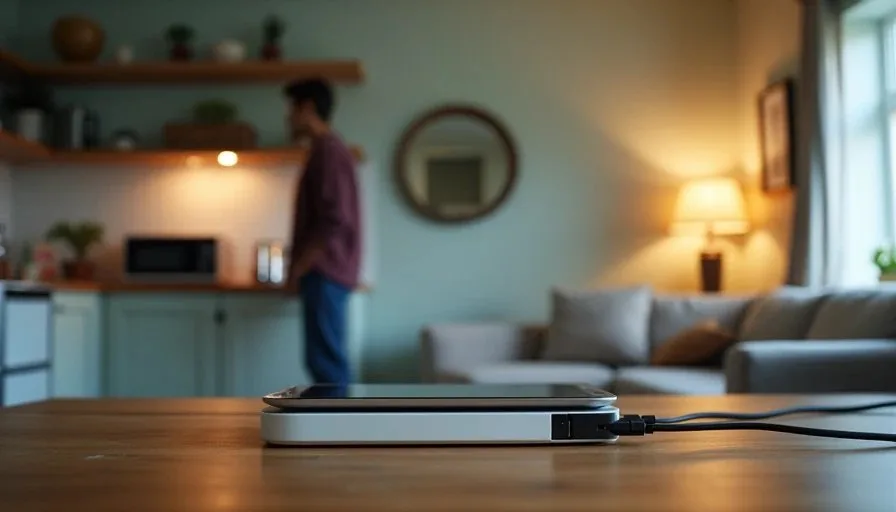
I like the idea of a simple family automation more than I like most smart home gadgets. A good automation removes a small step from your day. A bad one adds a new device to manage, a new app to check, and a new reason to call someone for help. I have tested both kinds at my kitchen table in Raleigh. I have set up automations that saved our family time, and I have ripped out automations that created more work than they replaced. This guide is about three simple family automations that help parents without taking over.
I am Daniel Mercer, and I write about family technology from the perspective of a parent who spent more than a decade in IT support. I am not against smart home devices for families. I am against complexity that does not earn its place. The three automations below are ones I have used in my own home. They are not flashy. They do not require a hub, a subscription, or a weekend project. They simply reduce digital friction in small, reliable ways.
Why Simple Automations Beat Smart Home Showpieces
The Maintenance Problem
Most smart home advice focuses on what a device can do, not what it costs to maintain. A smart bulb that changes color is fun for a week. A smart lock that needs a new battery every few months is a chore. The automations that last are the ones that require almost no attention. They run in the background, do one job, and do not ask for updates every time you turn around.
The Two-Parent Test
Every automation in our home has to pass the Two-Parent Test. Can Morgan and I both understand it, adjust it, and fix it if it stops working? If only one parent knows how the automation works, it is not a family solution. It is a single point of failure. That is why I keep our automations simple. A simple setup is easier to explain, easier to remember, and easier to repair.
The Friction Test
I also apply the Friction Test. Does this automation remove a step from a daily routine, or does it add one? If it adds a step, it is not worth keeping. The three automations below all remove a small step. None of them require daily attention. That is the standard I recommend to other parents.
Automation 1: A Bedtime Network Pause
What It Does
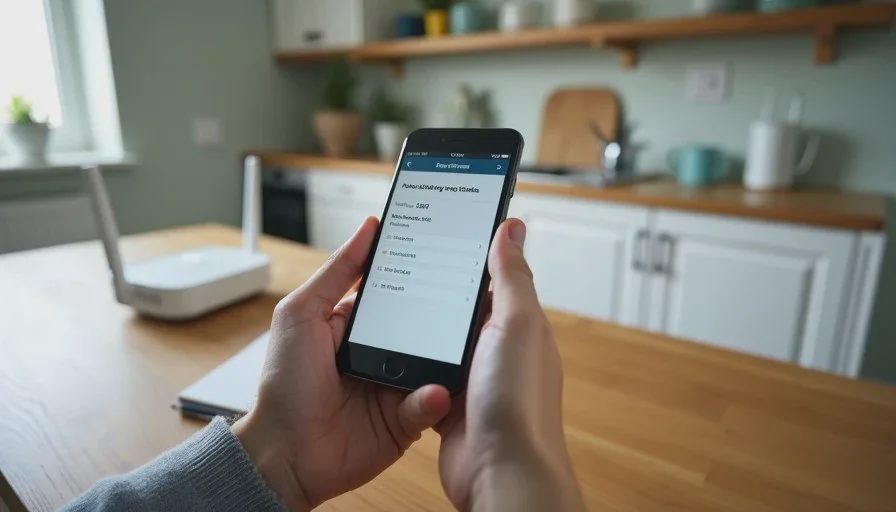
The first automation is a bedtime network pause. At a set time each evening, our router pauses internet access for the kids' devices. The pause lifts in the morning. This is not a punishment. It is a routine. When the network pauses, the tablets stop loading new videos, and the children know it is time to wind down. The rule is enforced by the system, not by a parent repeating the same sentence every night.
How to Set It Up
Most modern routers and mesh systems include parental controls with a scheduled pause feature. You do not need a separate device. In the router app, find the parental controls or device management section. Select the devices you want to pause. Set a schedule, usually something like 8:30 p.m. to 6:30 a.m. on school nights. Save the schedule and test it once before relying on it.
If your router does not offer this feature, some parental control apps can do the same thing. The key is to use a tool you already have. Do not buy a new router just for this. Try the free option first.
What to Watch Out For
Make sure the pause applies only to the children's devices, not to the whole network. You do not want to lose your own internet access at 8:30 p.m. Also, check whether the pause affects emergency calls or messaging. For younger children, this is usually fine. For teenagers, you may want to keep messaging available and pause only entertainment apps. Adjust the settings to match your family.
Why It Works
The bedtime pause works because it removes the nightly negotiation. Instead of arguing about one more video, the system simply stops loading new ones. The child learns the routine, and the parent does not have to be the bad guy every night. It is a small change, but it has made our evenings calmer.

Automation 2: A Morning Departure Reminder
What It Does
The second automation is a morning departure reminder. At a set time, a smart speaker or a phone automation plays a short reminder: "It is 7:20. Time to put on shoes and grab your bag." The reminder repeats once or twice before we need to leave. This is not a countdown clock or a loud alarm. It is a gentle prompt that helps everyone stay on track.
How to Set It Up
You do not need a smart speaker for this. A phone automation can do it. On iPhone, the Shortcuts app can play a message or a sound at a set time. On Android, Google Assistant routines or a simple alarm with a custom label can work. If you already have a smart speaker, you can create a routine that plays a message at a specific time.
The key is to keep the message short and specific. "Time to put on shoes and grab your bag" is better than "Hurry up, we are going to be late." The first one gives a clear action. The second one adds stress.
What to Watch Out For
Do not set too many reminders. One or two is enough. If the house is full of announcements, everyone stops listening. Also, make sure the reminder is not so early that it becomes background noise. Test the timing for a few days and adjust it. In our home, the reminder moved from 7:10 to 7:20 because the earlier time was ignored.
Why It Works
The morning reminder works because it is consistent. It does not get frustrated. It does not raise its voice. It simply repeats the same instruction at the same time. Children respond to routine, and the reminder becomes part of the routine. It also reduces the mental load on parents, who no longer have to watch the clock every minute.
Automation 3: Automatic Photo Backup to a Shared Album
What It Does
The third automation is automatic photo backup. Photos taken on family phones are automatically backed up to a shared cloud album. This means the photos are safe if a phone is lost, and both parents can see them without asking each other to send files. It is one of the simplest digital wellness habits you can build.
How to Set It Up
On iPhone, shared albums and iCloud Photos can handle this. On Android, Google Photos has a shared library feature. You can also use a family cloud service if you prefer. The setup is usually a few taps. Turn on automatic backup, create a shared album, and invite the other parent. Choose whether to back up all photos or only selected ones. For privacy, you may want to keep some photos out of the shared album.
What to Watch Out For
Automatic backup uses storage and data. Check your cloud storage plan before turning it on. If you have years of photos, you may need to upgrade. Also, decide whether videos are included. Videos take more space than photos, and backing them up automatically can fill a plan quickly. Start with photos only, then add videos if you have room.
Why It Works
The photo backup works because it removes a manual step. You do not have to remember to send photos to your partner or back them up before a phone upgrade. It happens in the background. The shared album also becomes a small family archive that everyone can enjoy. It is a simple family automation that quietly protects memories.
Automations I Would Skip
Voice-Controlled Everything
Voice control is convenient until it is not. A voice command that works in the kitchen may not work in the bedroom. Guests may trigger it by accident. Children may use it to order things they should not. If a voice automation requires constant troubleshooting, it fails the Friction Test. Use voice control for one or two useful tasks, not for everything.
Complex Smart Home Scenes
A smart home scene that dims the lights, closes the blinds, plays music, and adjusts the thermostat sounds impressive. It also requires every device to work perfectly every time. When one device fails, the whole scene fails. For most families, separate simple automations are more reliable than one complex scene.
Automations That Depend on One Person's Phone
If an automation only works when one parent's phone is nearby, it is fragile. The other parent cannot use it, and it stops working when that phone is charging or lost. Choose automations that run on a hub, a router, or a shared account. That way, both parents can rely on them.
How to Start Without Overdoing It
Pick One Automation
Do not set up all three at once. Pick the one that solves your biggest daily friction. If bedtime is the hardest part of your day, start with the network pause. If mornings are chaotic, start with the departure reminder. If you worry about losing photos, start with automatic backup.
Test It for a Week
Run the automation for a week before deciding whether to keep it. Notice whether it actually reduces friction or just adds a new thing to manage. If it does not help, turn it off. There is no shame in removing an automation that does not earn its place.
Keep It Simple
The best family routine automation is the one you barely notice. It runs in the background, does one job, and does not require constant attention. If an automation needs weekly fixes, it is not saving you time. It is costing you time. Simplicity is the point.
Small Helpers, Not Takeover
These three automations are not going to change your life overnight. They are small helpers. They remove a few steps, reduce a few arguments, and make a few routines smoother. That is enough. The goal of simple technology for busy parents is not a fully automated home. It is a home where technology quietly supports the people who live there.
If you try one automation, start with the one that solves a real problem. Set it up, test it, and keep it only if it helps. Let the technology do the small work so you can focus on the people. That is how automation helps parents without taking over.
Let technology help you live your life—don't let your life revolve around technology.