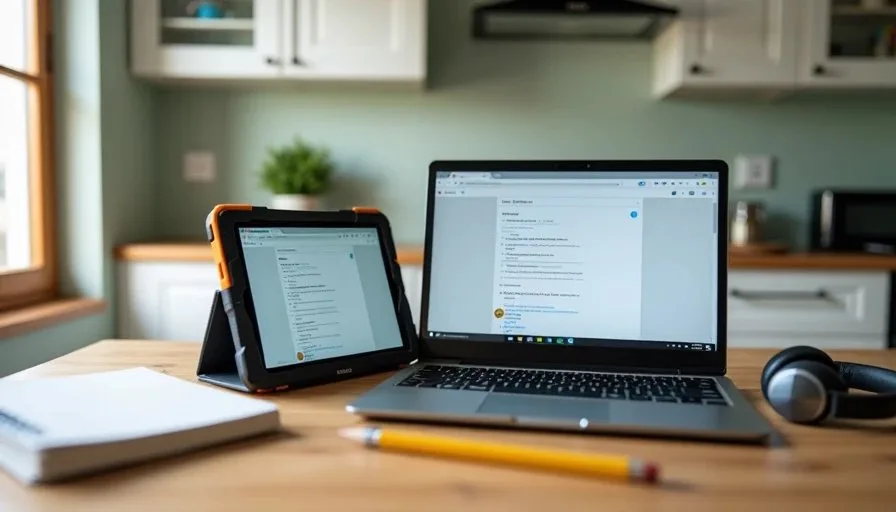
Every fall, parents ask me the same question: should I buy my child a tablet or a Chromebook for elementary school? It sounds like a simple choice, but it is not. A tablet vs. Chromebook decision affects how your child does homework, how you manage parental controls, how much you spend on accessories, and how many times you will hear "the keyboard is not working" on a school night. I have set up both types of devices for my own kids in Raleigh, and I have helped neighbors decide between them. The right answer depends less on the hardware and more on how your family actually uses the device.
This comparison is part of the Worth It at Home series, where I review family tech based on real use, not specifications. A device that looks great in a store but creates daily friction at home is not worth it. My goal here is to give you a clear, practical comparison so you can make a decision that fits your child, your budget, and your family's routines.
The Core Difference in Plain English
A Tablet Is Built for Touch
A tablet is designed around a touchscreen. It is great for reading, drawing, watching videos, and playing games. Many elementary school apps are built for touch first, and young children often find tablets more intuitive. An 8-year-old can pick up a tablet and start using it with almost no instruction.
The downside is typing. If your child needs to write a paragraph, type a book report, or join a video class with a chat feature, a tablet without a keyboard becomes frustrating. You can add a keyboard case, but that changes the experience and the cost.
A Chromebook Is Built for Typing and Schoolwork
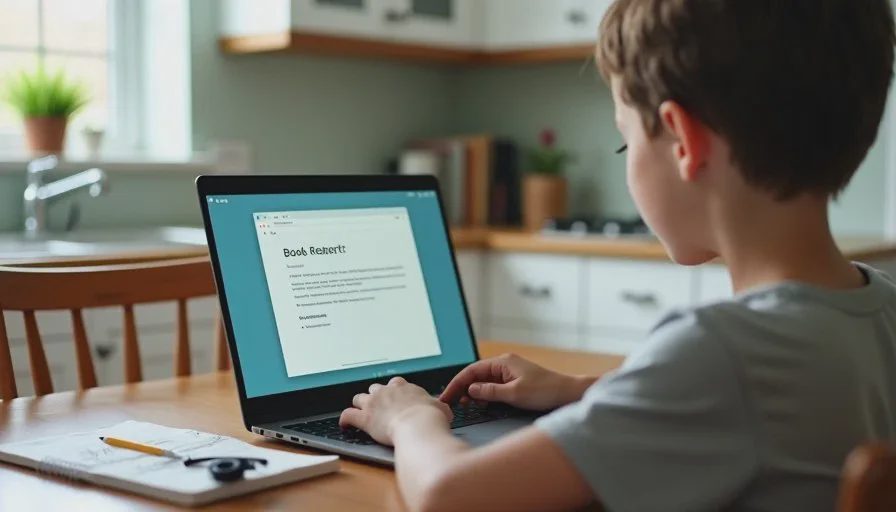
A Chromebook is a laptop that runs ChromeOS. It is designed for typing, web browsing, and school platforms like Google Classroom. If your child's school uses Google Workspace for Education, a Chromebook fits naturally into that system. Most school assignments are easier to complete on a Chromebook because they involve typing, forms, or web-based tools.
The downside is that a Chromebook is less natural for young children who are still learning to use a device. Touch-based apps are fewer, and the trackpad can be tricky for small hands. A 5-year-old will not get much out of a Chromebook. An 8-year-old with typing practice will.
How Elementary School Work Actually Looks
Early Grades: K Through 2
In kindergarten through second grade, most school technology is touch-based. Children use reading apps, math games, and drawing tools. A tablet is usually the better fit. The interface is simpler, the apps are designed for small hands, and the device is more portable.
At this age, I would not buy a Chromebook unless the school specifically requires one. A tablet with a sturdy case and parental controls covers almost everything a young child needs. If typing practice is part of the curriculum, a tablet with a detachable keyboard can bridge the gap, but the keyboard is usually secondary.
Middle Grades: 3 Through 5
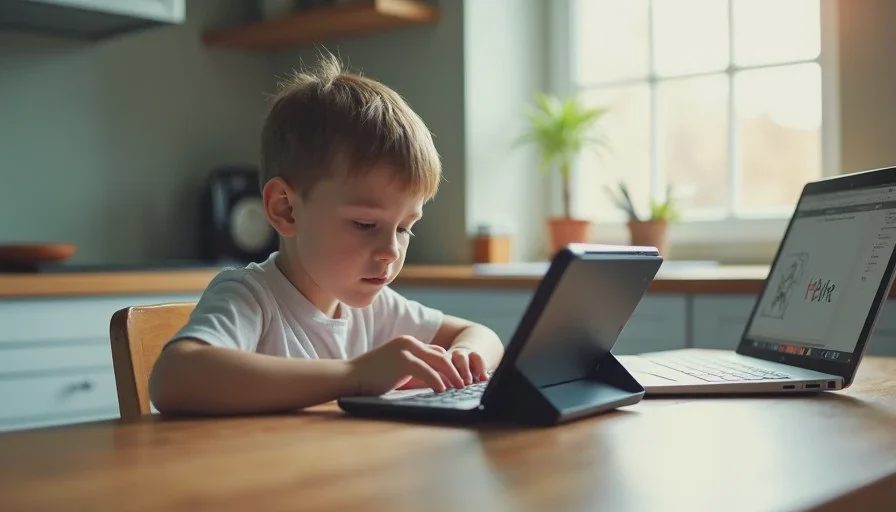
In third through fifth grade, the balance shifts. Children start typing more. They write paragraphs, complete online forms, and use school platforms that work better in a browser. This is where a Chromebook starts to make more sense. The typing experience is better, the screen is larger, and the device prepares them for the kind of work they will do in middle school.
For this age group, I usually recommend a Chromebook if the school uses Google Classroom or similar tools. A tablet can still work, especially with a keyboard case, but the Chromebook is the more natural fit for schoolwork.
Parental Controls and Management
Tablet Controls
Tablets have mature parental control systems. Google Family Link, Apple Screen Time, and Amazon Kids offer app approvals, time limits, content filters, and purchase controls. These tools are well documented and relatively easy to use. For younger children, tablets give parents more granular control over what a child can access.
The downside is that these controls can be confusing at first. There are multiple layers: device settings, app store settings, and app-specific settings. It takes time to set up correctly, but once it is done, it works well.
Chromebook Controls
Chromebooks also support parental controls, but the experience varies by device and account type. If your child uses a school-managed account, the school controls the settings. If you use a personal Google account, you can manage settings through Family Link. The controls are solid, but they are less focused on young children than tablet controls.
For schoolwork, this is usually fine. For a child who wants to play games and watch videos, a Chromebook may offer fewer parental control options than a tablet. That is worth knowing before you buy.
Cost and Accessories
Tablet Costs
A decent family tablet costs between $150 and $350. Add a sturdy case, a screen protector, and possibly a keyboard case, and you are looking at another $50 to $100. A mid-range tablet with accessories can easily reach $400. Budget tablets exist, but they often struggle with performance and parental controls.
Chromebook Costs
A basic Chromebook for elementary school costs between $200 and $400. Many models are built for education, which means they are more durable and easier to repair. You do not need a case for most Chromebooks, though a sleeve helps. A mouse is optional but useful for younger children. The total cost is often similar to a tablet with accessories.
Which Is the Better Value?
If your child mostly uses touch apps, a tablet is the better value. If your child needs to type and use school platforms, a Chromebook is the better value. Do not buy a Chromebook for a 5-year-old who only uses drawing apps, and do not buy a tablet for a 10-year-old who needs to write book reports. Match the device to the work.
Durability and Repairs
Tablets
Tablets are fragile. A drop on a hard floor can crack the screen. Repairs can be expensive, sometimes close to the cost of a new device. A sturdy case is essential. I have replaced one cracked tablet screen in our home, and it was not a pleasant experience. If your child is hard on devices, a rugged case is not optional.
Chromebooks
Chromebooks built for education are generally more durable. Many have reinforced hinges, spill-resistant keyboards, and rubberized edges. They are designed to survive school life. Repairs are often easier because schools use them in large numbers. If durability is a priority, a Chromebook has an advantage.
Software and App Availability
Tablet Apps
Tablets have access to a huge library of child-friendly apps. Reading, math, drawing, coding, and language apps are plentiful. Many of these apps are designed specifically for touch and for young learners. For creativity and exploration, tablets are strong.
Chromebook Software
Chromebooks run web apps and Android apps. The Android app experience on a Chromebook is not always as smooth as on a tablet, but it works for most school tools. Google Classroom, Docs, Sheets, and Slides run natively. If your child's school uses Google Workspace, a Chromebook is the smoother choice.
Which One Should You Buy?
Choose a Tablet If
Your child is in kindergarten through second grade.
Most of their use is touch-based apps, reading, or drawing.
You want strong, granular parental controls.
Your child does not need to type for school yet.
Choose a Chromebook If
Your child is in third through fifth grade.
Their school uses Google Classroom or similar tools.
Typing and web-based homework are part of the routine.
You want a device that will last into middle school.
Consider Both If
Some families use a tablet for younger children and a Chromebook for older children. That is not wasteful if each device matches the child's needs. A shared family tablet and a school Chromebook can coexist. The key is to avoid buying a device that does not fit the work.
A Final Word on the Decision
The tablet vs. Chromebook question does not have one right answer. It has a right answer for your child, your school, and your family. Look at the homework, not the marketing. Talk to your child's teacher. Ask what platforms the school uses. Then match the device to the actual work.
If you get it right, the device becomes a tool that helps your child learn without adding daily friction for you. If you get it wrong, you will know within a week. The good news is that both tablets and Chromebooks can be returned or repurposed. The important thing is to make the choice consciously, not because one was on sale.
Let technology help you live your life—don't let your life revolve around technology.