Learning how to block adult sites on iPhone does not require buying another monitoring subscription or turning your home into a tiny security operations center. Apple already includes useful controls in Screen Time, and a few minutes of setup can make an iPhone much less likely to open explicit websites. The important part is choosing the right level of control for the person using the phone and remembering that no filter replaces a calm conversation.
Start with Screen Time content restrictions
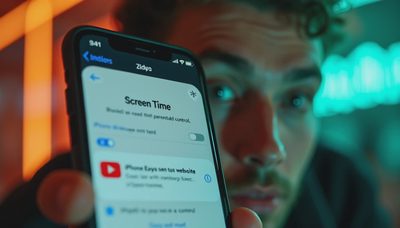
For most families, the simplest answer to how to block adult sites on iPhone is Screen Time. Open Settings, tap Screen Time, and turn it on if it is not already active. If the phone belongs to a child, use Family Sharing so the parent can manage settings from their own device. Otherwise, set a Screen Time passcode that the phone user does not know.
Tap Content & Privacy Restrictions and turn the feature on. Choose App Store, Media, Web, & Games, then Web Content. The most practical setting is Limit Adult Websites. Apple will block many known adult websites while allowing normal browsing for school, work, news, and hobbies. You can also add specific addresses under Never Allow if one site keeps slipping through.
This setting is useful because it costs nothing, works inside Safari, and does not create another monthly bill. It is not a perfect wall. Search results, social platforms, private browsers, and newly created websites can complicate filtering. Still, it handles the ordinary problem well, which is usually what a busy household needs on a Tuesday night.
How to block adult sites on iPhone with a tighter setup
If Limit Adult Websites is not strict enough, choose Allowed Websites Only in the Web Content menu. This creates a much narrower browsing environment where only approved sites are available. You can add school portals, library pages, homework resources, sports sites, and other destinations one at a time. It takes more maintenance, but it is the closest built-in option to a whitelist.
Before you finish, review the other Screen Time controls. Under iTunes & App Store Purchases, set installing apps and deleting apps to Don’t Allow if the goal is to prevent a child from adding a different browser. You can also restrict account changes, passcode changes, and cellular data changes. These settings matter because a web filter is less useful if someone can install a new route around it in thirty seconds.
The tradeoff is convenience. A teenager researching a science project may hit a blocked page that is perfectly harmless, and a parent will need to approve or add it. That friction is sometimes the point, but it should be proportionate. I prefer starting with Limit Adult Websites, then moving to Allowed Websites Only only when there is a clear reason.
Check browsers, apps, and search settings
A common mistake when learning how to block adult sites on iPhone is focusing only on Safari. Chrome, Firefox, Microsoft Edge, and privacy-focused browsers can provide separate browsing paths. If the phone user needs one approved browser, use Screen Time to prevent other browsers from being installed. If several browsers are necessary, apply the same family rules to each one and check their settings directly.
Social media and messaging apps deserve attention too. Explicit material can appear inside feeds, direct messages, image searches, and link previews even when a browser filter is active. Review the built-in sensitive-content controls for apps such as Instagram, TikTok, Reddit, YouTube, and Snapchat. The names and locations change, so treat these as additional layers rather than permanent guarantees.
Search engines also have their own filtering choices. Google SafeSearch and Bing SafeSearch can reduce explicit results, but they are not substitutes for Screen Time. A filter works best when the device restriction, browser choice, app settings, and household expectations all point in the same direction.
Add network-level protection at home
For families who want to know how to block adult sites on iPhone across the home Wi-Fi network, DNS filtering is the next step. Services such as Cloudflare Family DNS, OpenDNS FamilyShield, and CleanBrowsing offer family-oriented filtering options. You can configure one at the router, which means phones, tablets, game consoles, and smart TVs on that Wi-Fi network receive the same basic protection.
Network filtering has a useful advantage: it covers more than one app or browser. It can also reduce the need to configure every new tablet separately. The limitation is equally important: it usually applies only while the device is connected to that home network. Cellular data, public Wi-Fi, a VPN, or a different DNS configuration can bypass it.
Router controls also require a little patience. You may need the administrator password, and changing DNS settings incorrectly can interrupt internet access. Write down the original values before changing anything. For a household that wants a low-effort solution, Screen Time is usually enough. For several devices, a router-level filter can be worth the setup time.

Make the settings harder to undo
The practical answer to how to block adult sites on iPhone includes protecting the controls themselves. Use a Screen Time passcode that is different from the phone unlock code. Do not store it in a shared notes app or say it aloud while setting up the device. Parents should know where the recovery information is stored, while children should not be able to reset restrictions independently.
If you manage a child’s phone through Family Sharing, check that the correct Apple Account is connected. Review Screen Time reports occasionally, but do not turn every evening into an interrogation. The goal is to reduce access and create a safer default, not to make a child feel watched every minute.
For older teenagers, explain what the settings do and why they are being used. A short conversation about pornography, consent, privacy, scams, and permanent screenshots is more useful than a dramatic lecture. Also explain that filters can make mistakes. If a legitimate page is blocked, the right response is to ask for help rather than search for a workaround.
A five-minute household setup
Here is how to block adult sites on iPhone with a sensible minimum-effort routine. First, turn on Screen Time and create a separate passcode. Second, select Limit Adult Websites. Third, restrict app installation if the phone belongs to a younger child. Fourth, review browsers and social apps. Fifth, test the setup by opening a few ordinary school or news pages and confirming that they still work.
If you need stronger coverage, add Allowed Websites Only or configure family DNS on the home router. Then test the phone on both Wi-Fi and cellular data. A setting that works at the kitchen table may not behave the same way in the back seat of a car. Keep a short record of what you changed so another parent can troubleshoot it later.
What these controls cannot do
No method for how to block adult sites on iPhone catches everything. Filters can miss new domains, misclassify educational material, or fail when a user switches networks. They also do not prevent every form of explicit content inside apps, messages, or downloaded files. That is why the strongest plan combines technical limits with age-appropriate supervision and direct communication.
If a child encounters disturbing material, stay calm and ask what happened before changing every setting in frustration. Save evidence only when necessary, report abusive content through the relevant service, and seek professional help if there is exploitation, coercion, or contact from an adult. For ordinary household protection, start with the built-in tools before paying for a complicated dashboard.
The practical verdict is simple: Screen Time is worth keeping, router filtering is worth adding when you have several devices, and expensive monitoring subscriptions are worth skipping until you know what problem they solve. Use what helps. Fix what matters.