
The right app that blocks interruptions can make a phone, tablet, or laptop feel noticeably calmer. In our house, the problem was not that Ethan had a phone or that Lily used a tablet for homework. The problem was the steady drip of game alerts, shopping prompts, autoplay videos, and school-platform reminders arriving at the worst possible moment. Dinner became a series of tiny negotiations. Nobody needed another complicated dashboard; we needed fewer interruptions.
That distinction matters. An app that blocks can refer to software that filters ads, pauses notifications, limits websites, restricts social media, or keeps children from opening certain apps. Those jobs overlap, but they are not identical. Before installing anything, decide what kind of noise you want removed and which devices actually need help.
Start with the interruption, not the app store
A useful first step is to watch the household for one ordinary day. Write down what breaks concentration: text alerts during homework, browser ads on a recipe site, YouTube recommendations after a short video, or late-night game access. This quick inventory prevents the common mistake of buying a broad parental-control subscription when a phone's built-in settings would have solved the real issue.
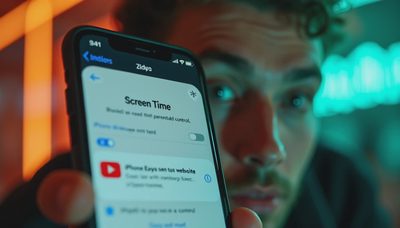
For simple notifications, iPhone Focus modes and Android's Do Not Disturb tools are often enough. They can silence selected apps, allow calls from family members, and schedule quiet hours. For a browser problem, an ad blocker is more appropriate. For a child who keeps opening the same distracting site, a screen-time tool or router-level filter is the better fit. An app that blocks everything can create more friction than it removes, especially when it hides useful login windows or school content.
Here is what actually mattered for us: the setting had to work during the busy part of the evening without requiring me to approve every harmless notification. A system that needs daily maintenance becomes one more chore beside the laundry and calendar.

Choosing the right level of blocking
There are three practical levels. Device controls are the cheapest and most private starting point because they are already installed. They work well for scheduled quiet hours, app limits, and notification control. Their weakness is consistency: a determined teenager can sometimes change a setting, and each family device needs separate attention.
A dedicated app that blocks websites or categories can provide a shared control panel. Services such as 1Blocker, Freedom, Bark, and similar products take different approaches, so compare their current features rather than assuming the names mean the same thing. Some focus on browsing and ads, some on schedules and focus sessions, and some include parental monitoring. A paid plan commonly costs roughly $3 to $10 per month, depending on whether it covers one person or a household.
Network-level filtering sits at the router and can cover phones, tablets, televisions, and game consoles connected to home Wi-Fi. It is useful for broad categories such as adult content, gambling, or known malware. It does not automatically control cellular data, a neighbor's Wi-Fi, or every app's internal content. A router filter can also create household arguments when it blocks a legitimate site, so keep an easy way to pause or adjust it.
Privacy and family trust deserve equal weight
Blocking software can see more than people expect. Depending on the product, it might process browsing addresses, screen-time details, installed apps, search activity, or device identifiers. That does not make every service unsafe, but it does mean the privacy policy deserves more than a quick scroll during setup. Ask whether the company sells personal information, how long it retains activity logs, and whether location tracking is necessary for the feature you want.
With younger children, parents may need stronger controls. With teenagers, transparent rules often work better than secret monitoring. Explain what is being blocked, when it applies, and how a legitimate mistake can be corrected. An app that blocks quietly in the background may reduce arguments for a week, but a clear family agreement is more durable. We tell Ethan that homework hours are quieter by design, not because someone is reading every message.
The minimum-effort privacy option is to use built-in controls first, turn off unnecessary analytics, and avoid granting contacts or location access unless the product genuinely needs it. The advanced option is a separate family account, a router filter, and regular reviews of connected devices. More layers can help, but more layers also mean more passwords and more opportunities for settings to drift.
A setup that will survive a busy week
Install one tool on one problem device before rolling it out everywhere. Choose a two-hour test window, such as homework time on Tuesday, and observe what happens. Test the school portal, banking site, grocery delivery account, streaming service, and any medical or work tools the household uses. If one of those fails, adjust the category or allowlist instead of abandoning the whole idea.
A reliable app that blocks distractions should have clear schedules, a pause button for emergencies, and an obvious way to see what it stopped. Look for a local control option when possible, strong account security, and a cancellation process that does not require an email exchange. If a product asks for a full annual payment before you can test basic behavior, I would be cautious. A $60 annual subscription is not a bargain if everyone disables it after three days.
Set a monthly five-minute review. Check whether the rules still match school schedules, whether a child needs access for a new activity, and whether the paid plan is earning its place. Subscription creep often starts with one useful filter and ends with several overlapping services doing nearly the same job.
Common mistakes that create more noise
The first mistake is blocking too broadly. A category such as social media can include a useful community page, a school announcement, or a tutorial needed for a project. Start with specific apps or time windows. The second mistake is using a browser blocker to solve a notification problem. Ads may disappear while the phone continues buzzing from every shopping app.
Another mistake is forgetting exceptions. Family calls, school messages, two-factor authentication, weather alerts, and work notifications should have a deliberate path through the quiet period. Test those exceptions from another phone before assuming they work. Also remember that blocking on Wi-Fi does not necessarily block cellular access. That limitation is normal, not a product failure.
Finally, do not treat blocking as a replacement for conversation. A child who is tired, lonely, or avoiding difficult homework will often find another distraction. The technology can lower the number of easy temptations, but it cannot decide whether the household needs a snack, a walk, or a shorter assignment.
The practical verdict for a lower-noise home
An app that blocks is worth considering when a specific digital interruption is costing attention every day. Begin with the free controls already on your devices. If those fail, choose one focused product, test it for a week, and pay only for features you can name. An app that blocks ads is not automatically a parental-control tool, and an app that blocks websites is not automatically private.
For our household, scheduled quiet modes handled notifications, a browser extension handled most advertising, and conversation handled the rest. That combination cost less than a large family subscription and required fewer settings to maintain. Families with broader safety concerns may reasonably choose a router filter or dedicated monitoring service, but the purchase should follow a clearly defined problem.
Use what helps. Fix what matters. If the tool lowers the volume without making home life feel like an IT department, it has earned its place. If it creates more alerts, permissions, and monthly charges than it removes, leave it alone.